
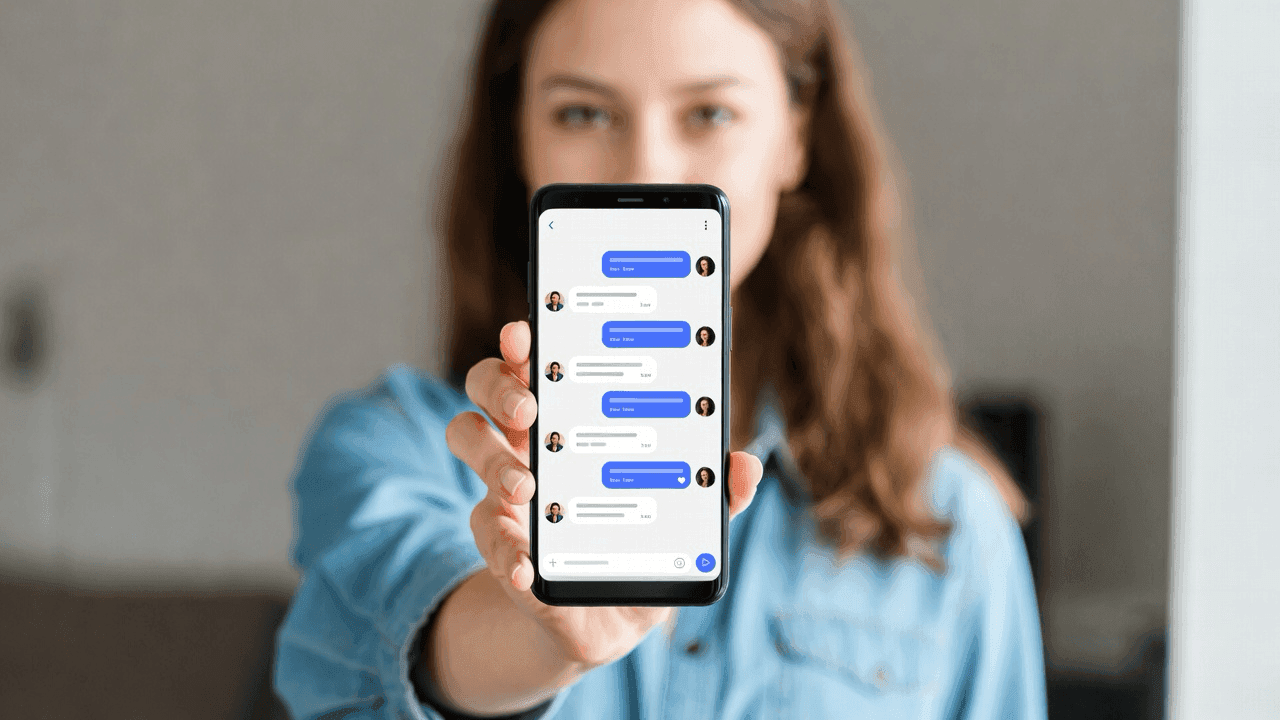

What Are Fake Chat Screenshots?
Fake chat screenshots are mockups of messaging app conversations, built with a generator tool rather than screenshotted from a real app. They let you control every detail: usernames, timestamps, message content, and visual style. Common uses include marketing materials, content creation, design mockups, tutorials, and film production.
Last week, a friend asked me to help with a product launch deck. She had glowing customer feedback buried in emails and Slack threads, but pasting raw text into slides felt flat. That's when I showed her how to turn those quotes into realistic chat mockups. The difference was immediate: the testimonials felt alive.
If you're in a similar spot (showcasing customer feedback, building tutorials, or creating social content) this guide walks through how to make it happen.
Why Use Fake Screenshots?
You might be wondering when mockups actually make sense. Here are the scenarios where they work well:
- Marketing materials: Showcase product reviews or customer testimonials
- Content creation: Create engaging social media content
- Design mockups: Present app concepts or UI designs
- Educational content: Illustrate tutorials or documentation
- Film and video production: Create realistic props for scenes
Ethical Use
Always use mockups responsibly. Never create fake screenshots to deceive, defame, or misrepresent real people or conversations.
Step 1: Choose Your Platform
Think about where your audience actually communicates. A B2B SaaS testimonial probably looks more natural in Slack than WhatsApp. A casual customer review might fit better in iMessage. Mockly supports 23 chat apps including WhatsApp, iMessage, Slack, Discord, Instagram, and more, plus 40+ apps in total across chats, AI chats, posts, comments, stories, and emails.
Here's a WhatsApp mockup showing how a simple conversation might look:
WhatsApp Direct Message
A realistic WhatsApp conversation mockup
Step 2: Set Up Your Conversation
With your platform selected, it's time to set up who's talking. This is where you define the participants:
- Sender: The person sending messages (typically "you")
- Receiver(s): The other participant(s) in the conversation
For professional contexts (say, a customer success win you want to share internally) apps like Slack fit naturally:
Slack Conversation
Perfect for B2B marketing materials
Step 3: Craft Your Messages
This is where many mockups fall flat. Stilted, overly formal dialogue breaks the illusion instantly. A few things to keep in mind:
- Keep it conversational: Use contractions ("I'm" not "I am") and casual language
- Add realistic timing: Quick exchanges happen in minutes, not hours
- Include reactions: A thumbs up or heart reaction feels natural
- Match the platform's style: Slack messages tend to be punchier than email; iMessage is casual
Read your dialogue out loud. If it sounds like something you'd actually text, you're on the right track.
Step 4: Customize the Appearance
Mockly lets you customize several visual elements:
- Dark/Light mode: Toggle between appearance modes
- Device status: Show battery level, time, and signal
- Device frame: Add or remove the phone frame
- Background: Use transparent backgrounds for flexible placement
Pro Tip
Use dark mode mockups for social media posts. They tend to get higher engagement and are easier on the eyes.
Step 5: Export Your Screenshot
Once you're happy with your mockup, you can export it as:
- PNG: High-resolution image, with optional transparent background on Premium
- Video (MP4 / WebM): Animated scrolling export on Premium; works on TikTok, Reels, Shorts
Social Media Mockups
Chat screenshots aren't the only option. Sometimes you need to show how a brand mention or customer shoutout looks on social. Here's an Instagram post example:
Instagram Post
Create engaging social proof
AI Chat Mockups
Creating a tutorial about prompt engineering? Building a case study around AI tools? Mockly supports ChatGPT, Claude, Gemini, Grok, and Perplexity:
ChatGPT Conversation
Perfect for AI tool tutorials
A Few Things That Help
These overlap with some of the steps above, but they're worth emphasizing:
- Stay authentic: Base mockups on real scenarios or feedback you've actually received
- Maintain consistency: If you're creating multiple mockups, stick to one theme (dark or light)
- Consider your audience: A Discord mockup won't resonate with an audience that's never used Discord
- Test different formats: Some audiences prefer dark mode; others find light mode cleaner
Legal Considerations
While mockups are a legitimate marketing tool, ensure you're not infringing on platform trademarks or misrepresenting user endorsements. When in doubt, add a "simulated conversation" disclaimer.
Related Tutorials
Want step-by-step guides for specific apps?
- How to Make Fake WhatsApp Chat
- How to Make Fake Discord Messages
- How to Make Fake Instagram DMs
- How to Make Fake TikTok DMs
- How to Make Fake Snapchat Messages
- How to Make a Fake Messenger Chat
- How to Tell If a Screenshot Is AI Generated
- How Marketers Use Mockly
Frequently Asked Questions
Is it legal to create fake chat screenshots?
Yes, for legitimate purposes like marketing, education, design mockups, and creative projects. The line is clear: don't use mockups to deceive, impersonate real people, or spread misinformation.
Which app should I choose for my mockup?
Match the app to your audience. B2B content works best as Slack or LinkedIn mockups. Consumer-facing content fits WhatsApp, iMessage, or Instagram. Check the table above for a quick reference.
Can I make group chat mockups?
Yes. Mockly supports group chats with multiple participants, custom names, and profile pictures across all supported apps.
Start Creating
Ready to try it yourself? Get started with Mockly and build your first chat mockup for free.
Try it yourself
Create your first mockup in under a minute
40+ apps. Free to try, no signup needed.
Start your mockupAbout the author
Elena Brooks
Content Editor
Elena writes step-by-step tutorials and practical guides for creating realistic chat and social mockups. She focuses on helping creators quickly turn ideas into polished visuals that look believable in demos, landing pages, and client work.
Tags
More from the blog
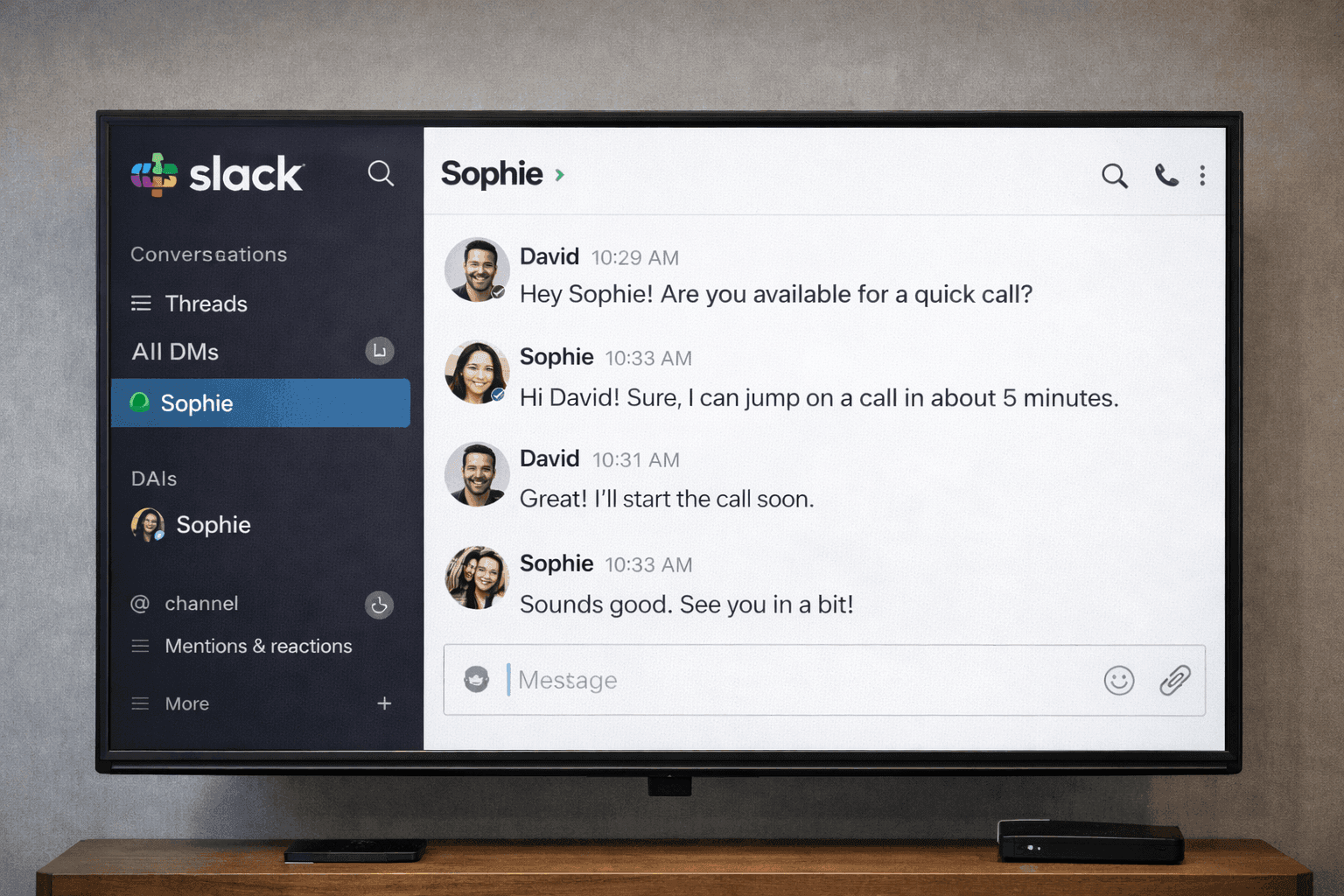
Fake Chat Screenshots for Filmmakers & Video Production | Guide 2026
How filmmakers and video producers create realistic phone screen props with fake chat screenshots. Free tools for film, TV, documentaries, and YouTube content.

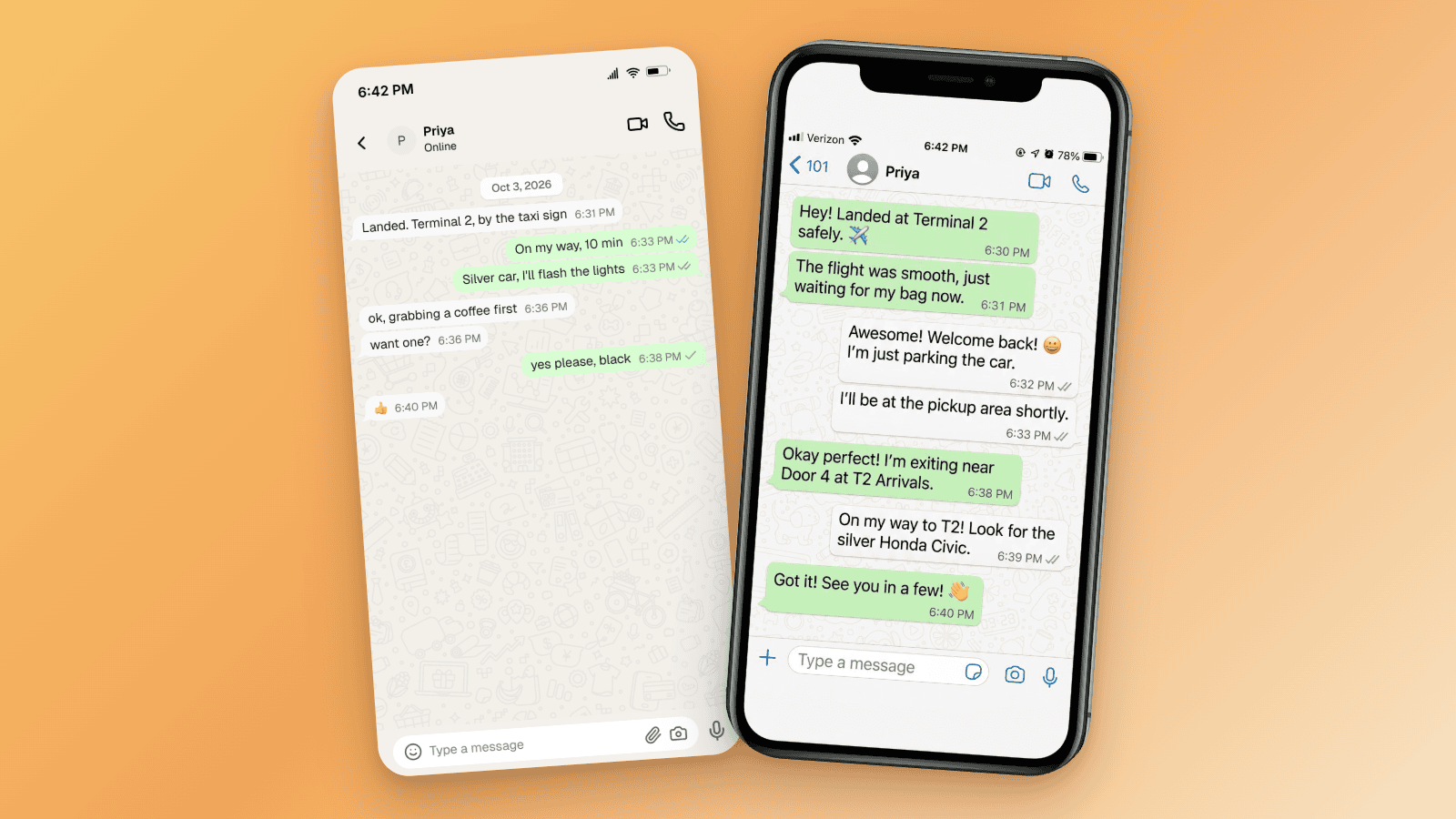
How to Tell If a Screenshot Is AI Generated: 6 Checks
Screenshots can be AI generated now. Run these six checks: SynthID and OpenAI Verify, Content Credentials, reverse image search, and the UI tells per app.

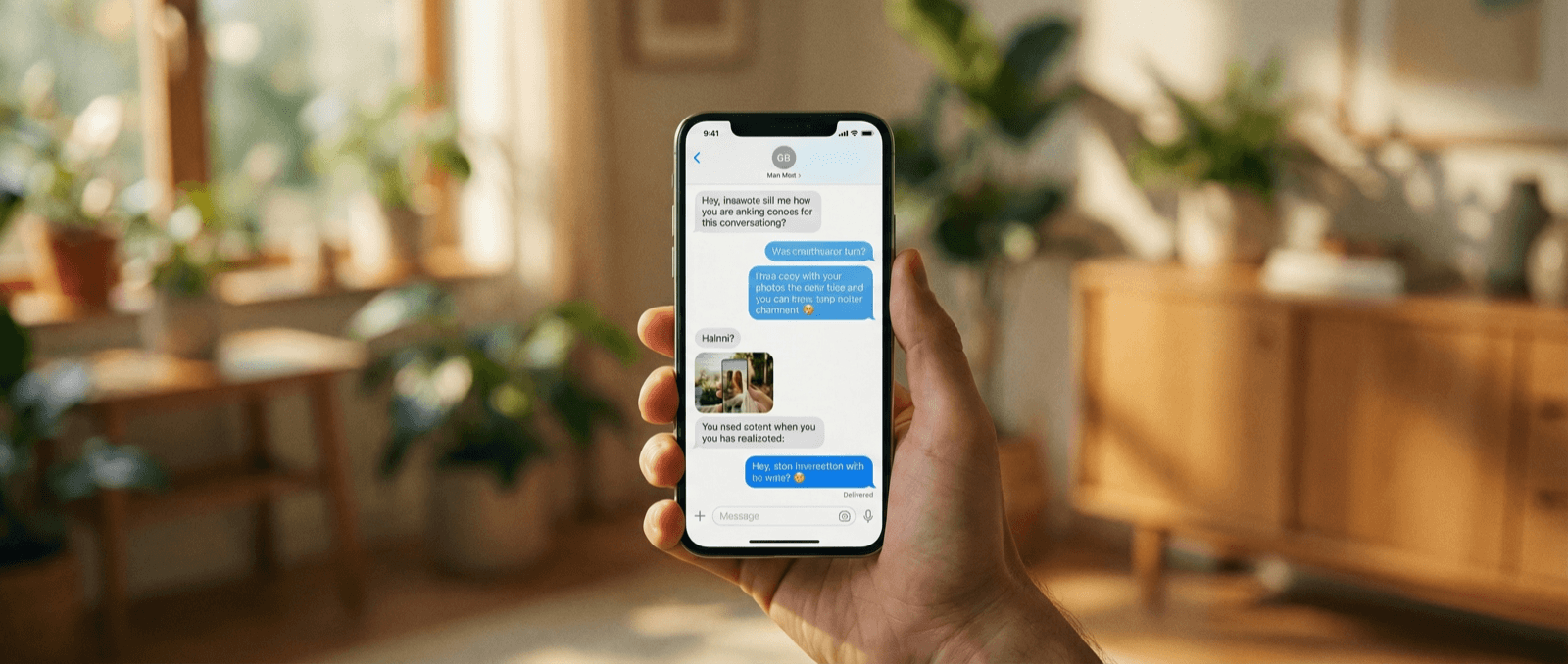
What Makes a Mockup Feel Real on Screen
The realism cues that make chat, AI, social, and phone-screen mockups feel believable on landing pages, in decks, and on camera.