
From Blank Editor to Finished Screenshot
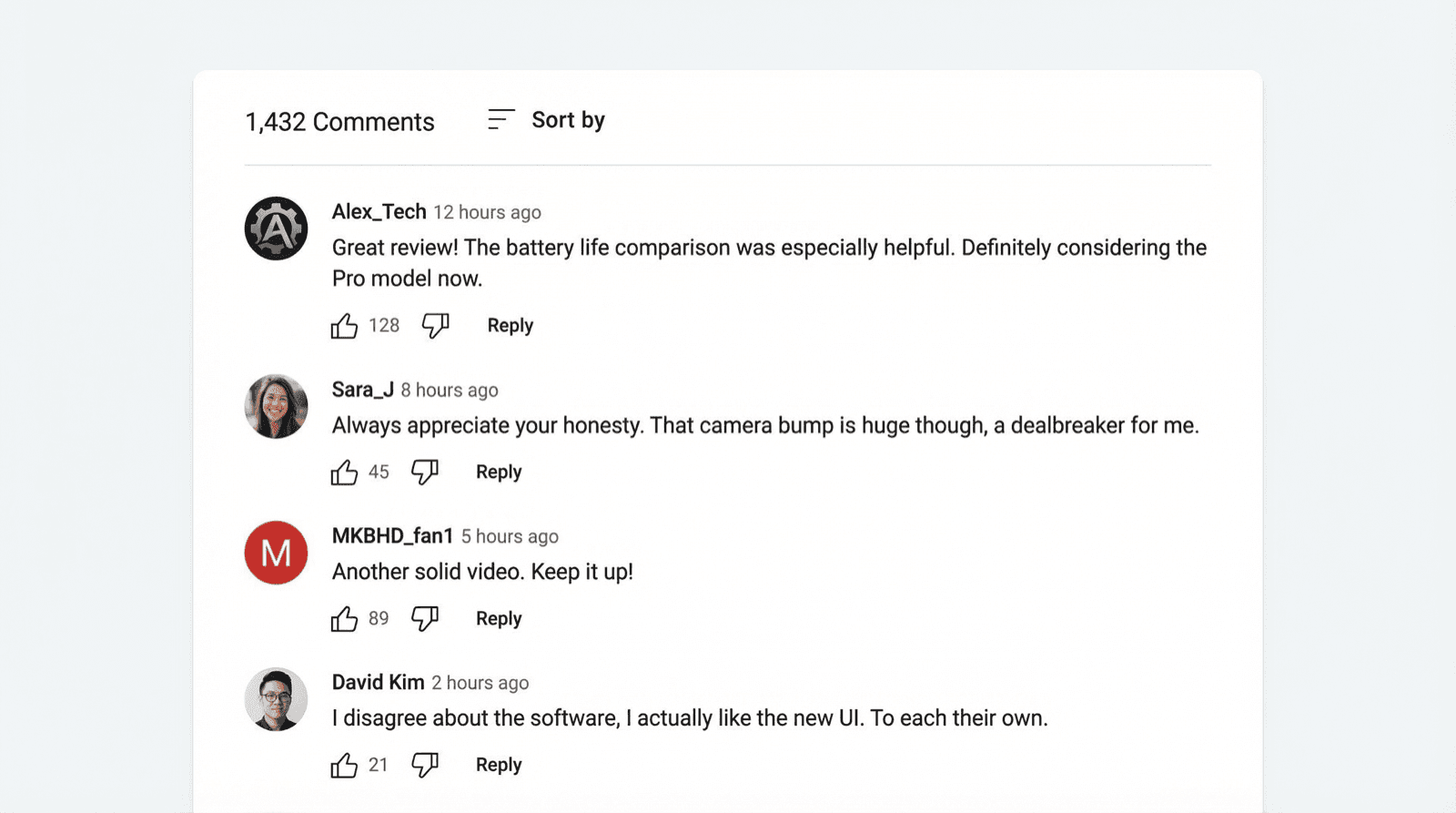
This is the hands-on walkthrough: we'll build one complete YouTube comment mockup from scratch, step by step, and end with the exported screenshot below. If you want the conceptual overview first (what a comment generator is, every feature it supports), that lives in the YouTube comment generator guide. And if you're hunting for scenario ideas, there's a whole post of YouTube comment examples.
Here we're making one thing: the comment section for a fictional tech reviewer's phone review, with a top comment, a creator reply, and a timestamp comment. It's the pattern that covers 90% of real mockup needs.
Here's where we'll end up:
Why Would You Need Fake YouTube Comments?
There are more use cases than you'd expect:
- Video pitches and proposals: Show potential sponsors or collaborators what the comment section could look like on a sponsored video
- Content planning: Mock up audience reactions before filming to test your concept
- Presentations and case studies: Illustrate engagement metrics without screenshotting real users
- Educational materials: Teach students about online discourse, digital literacy, or media analysis
- App and website design: Need a YouTube embed in your prototype? A comment mockup sells the concept
- Social media content: Comment screenshots get shared constantly on Twitter, Instagram, and TikTok
Quick Note on Ethics
Mockly is built for mockups, prototypes, and creative work. Don't use generated comments to mislead people or impersonate real users. Keep it honest.
How to Create a YouTube Comment Mockup (Step by Step)
The whole process takes about 2 minutes. Here's how it works:
1. Open the YouTube Comment Editor
Head to Mockly's YouTube comment editor. Free to try, no download needed.
2. Add Users to Your Comment Section
Click "Add User" to create commenters. For each person, you can set:
- Username (the display name shown next to the comment)
- Profile picture (upload a custom avatar or use the default)
- Verified badge (for brand accounts or public figures)
- Creator badge (the highlighted badge YouTube gives to the video uploader)
Tip: mix up your usernames. A comment section with "User1" through "User5" won't fool anyone.
3. Write Your Comments
Add the actual comment text for each user. You've got full control over:
- Comment text: Write whatever fits your scenario
- Like count: Set it to 0, 47, or 12K. Up to you
- Dislike button: Present but count hidden (just like real YouTube)
- Replies: Add nested reply threads under any comment
- Pinned status: Pin a comment to the top, just like a creator would
- Heart/Author Liked: Toggle the creator heart indicator
4. Preview and Adjust
The preview updates in real time as you make changes. Check that everything looks right: the spacing, the avatars, the engagement numbers. Compare it to a real YouTube comment section if you want to be thorough.
5. Export Your Screenshot
Hit the export button. You'll get a high-resolution PNG that looks exactly like a real YouTube comment section. The free version includes a small Mockly watermark. Premium removes it and bumps up the resolution.
Get the Details Right
Real YouTube comment sections have specific quirks: the thumbs-down count is always hidden, pinned comments have a subtle grey label, and the creator heart sits in the bottom-right of the avatar. Mockly handles all of this automatically.
Why the Example Above Works
Look back at the finished mockup and notice the choices, because they're the difference between "screenshot" and "obviously generated":
- The top comment praises something specific. "You actually tested battery life for two weeks instead of quoting the spec sheet" reads like a real viewer because it references the video's content. Generic praise ("great video!") is the fake-comment tell.
- The creator reply is casual and gets fewer likes than the comment. 891 on the reply against 2.4K on the comment: that ratio is how YouTube actually behaves. The Creator badge renders automatically because the reply comes from the video's author.
- One timestamp comment. "8:42 the camera comparison is brutal lol" is the most YouTube sentence structure in existence. Every real comment section has one.
- The header count (1,872) is bigger than the visible thread. You're seeing the top of a pile, not the whole pile.
Steal this structure for your own scenario: one specific top comment, one badged creator reply, one flavor comment, uneven likes.
Use Cases in Practice
Content Creators
You're pitching a brand deal. The brand wants to see what engagement looks like on your channel. Instead of screenshotting an old video (which might not have the right vibe), you mock up a comment section that matches the campaign. Professional, specific, and way more convincing than a generic "we get great engagement."
Marketers and Agencies
Client presentations need visuals. A slide that says "users love the product" means nothing. A slide showing a YouTube comment section with 47 likes on "this actually changed how I edit videos" hits different. Mockly lets you create these in minutes, across 44 different mockup types.
Designers and Product Teams
Building an app that embeds YouTube content? Your prototype needs comment sections that look real. Placeholder text breaks the illusion. Use Mockly to generate realistic comments that match your design system.
Educators
Teaching a class about social media? Generated comment sections let you create examples that illustrate your point without exposing real students or users. Set up positive examples, negative examples, or moderation scenarios.
Tips for Realistic YouTube Comment Mockups
A few things that separate a convincing mockup from an obvious fake:
-
Vary the like counts: Not every comment gets the same engagement. Top comments might have 2.3K likes. Most have single digits. Some have zero.
-
Mix up comment lengths: Real comment sections have everything from "lol" to three-paragraph essays. Keep it varied.
-
Use realistic usernames: Handles like "gaming_mike_2024" or "sarah.creates" feel more real than "TestUser" or "John Smith."
-
Add some replies: A comment section with zero replies looks empty. Even one or two reply threads add authenticity.
-
Pin strategically: If you're mocking up a creator's channel, pin a comment that sounds like a creator would pin it: a link, an update, or a highlighted fan comment.
Frequently Asked Questions
Is Mockly's YouTube comment generator free?
Yes. Try Mockly's YouTube comment generator free. The free version includes a small watermark. Mockly Premium removes the watermark and adds 4K (highest quality) export options.
Can I add verified badges and pinned comments?
Absolutely. You can add verified badges (the grey checkmark for official accounts), creator badges (the highlighted channel owner indicator), pinned comment labels, and heart indicators. Every detail is customizable.
What image format does the export use?
Exports are PNG files at high resolution. They're ready to use in presentations, social media posts, design files, or anywhere else you need them.
Does Mockly support other platforms besides YouTube?
Yes. Mockly supports comment sections for YouTube, Instagram, TikTok, X, Facebook, LinkedIn, Reddit, and Threads. There are also generators for chat mockups, social posts, and AI chat interfaces. 40+ apps total across chats, AI chats, posts, comments, stories, and emails.
Is my data private?
The editor runs locally, so your comments and usernames stay on your device while you build the mockup. Hitting export does send the payload to Mockly's render service to produce the image, but it isn't stored after.
Can I create YouTube comment mockups on mobile?
The editor works in any modern browser, including mobile. That said, a desktop or tablet gives you more room to work with. The export quality is the same regardless of device.
Ready to try it? Open Mockly's YouTube comment generator and build your first mockup. Takes about two minutes, free to try.
Try it yourself
Create your first mockup in under a minute
40+ apps. Free to try, no signup needed.
Start your mockupAbout the author
Elena Brooks
Content Editor
Elena writes step-by-step tutorials and practical guides for creating realistic chat and social mockups. She focuses on helping creators quickly turn ideas into polished visuals that look believable in demos, landing pages, and client work.
Tags
More from the blog
YouTube Comment Generator: Create Fake Comment Sections (Free 2026)
Create realistic YouTube comment sections with Mockly's free comment generator. Add likes, replies, verified badges, pinned comments, and timestamps. Try free.
How to Make a Fake Messenger Chat (Facebook Messenger Guide)
Make fake Facebook Messenger chats that look real: the Active now header, blue and purple bubbles, dark mode, and group chats. Two worked examples you can copy, plus the details people check.
How to Make Fake Snapchat Messages (Chat & Story Guide)
Make fake Snapchat messages that look real: colored text, ME labels, dark mode, group chats, and story frames. Three worked examples you can copy, plus video export.