

Updated October 2026.
WhatsApp usernames went live for the first accounts on 17 July 2026 and are rolling out country by country. A chat with someone you have not saved now shows their @username where the phone number used to be. That changes what a believable WhatsApp mockup looks like, so this guide now covers it.
Most of what you make is still the classic chat: a saved contact, a name, "Online". Testimonials, tutorials, story posts, film props. Below you get both, plus the new header, with three examples you can copy into the WhatsApp chat generator.
Use responsibly
Don't use mockups to deceive people, impersonate someone, or spread misinformation. Never put a real person's or a real brand's @username on a mockup. Make one up.
Fast Steps
- Open the WhatsApp chat generator.
- Choose one-on-one chat or group chat.
- Add names, avatars and messages. For a chat with someone you have not saved, give the contact an @username.
- Set timestamps, dates, and read receipts.
- Add wallpaper, dark mode, device frame, or 3D view.
- Export a PNG mockup or a chat video.
What WhatsApp Usernames Changed in the Chat Screen
The header: @username where the number used to be
WhatsApp opened username reservations on 30 June 2026, under Settings > Account > Username. From 17 July, reserved names started to go live, in waves by country. A username shows with an @ in front, so you can tell it apart from a display name or a phone number.
The rules are strict: 3 to 35 characters, lowercase letters, numbers, periods and underscores, at least one letter, no www. at the start and no .com or .net at the end.
When someone you have not saved messages you by username, the @username sits at the top of the chat. Their own profile name shows with a tilde, like ~ Jonas, which is the way WhatsApp labels people you have not saved. The phone number stays hidden on both sides until you save each other.
Telegram has worked like this for years. If you build mockups for both apps, the Telegram chat guide shows how its handles look.
Saved contacts: nothing changed
A saved contact still shows the name you saved, with "Online" or "last seen" underneath, exactly as before. Chats that started before the rollout still use phone numbers too.
So most mockups do not need a username. Use one when the story needs a stranger, a brand reaching out, or a first contact.
Username key and business IDs: not in the frame
The username key is an optional short code a stranger types before their first message goes through. It is a prompt in the new-chat flow, not part of the chat screen.
Business usernames are tied to a business phone number, and the business-scoped user ID lives in the webhooks businesses receive. Neither shows in a screenshot, so there is nothing to mock up. For business chats with the blue verified badge, see the WhatsApp Business chat mockups guide.
Example 1: A First Message From a Brand You Have Not Saved
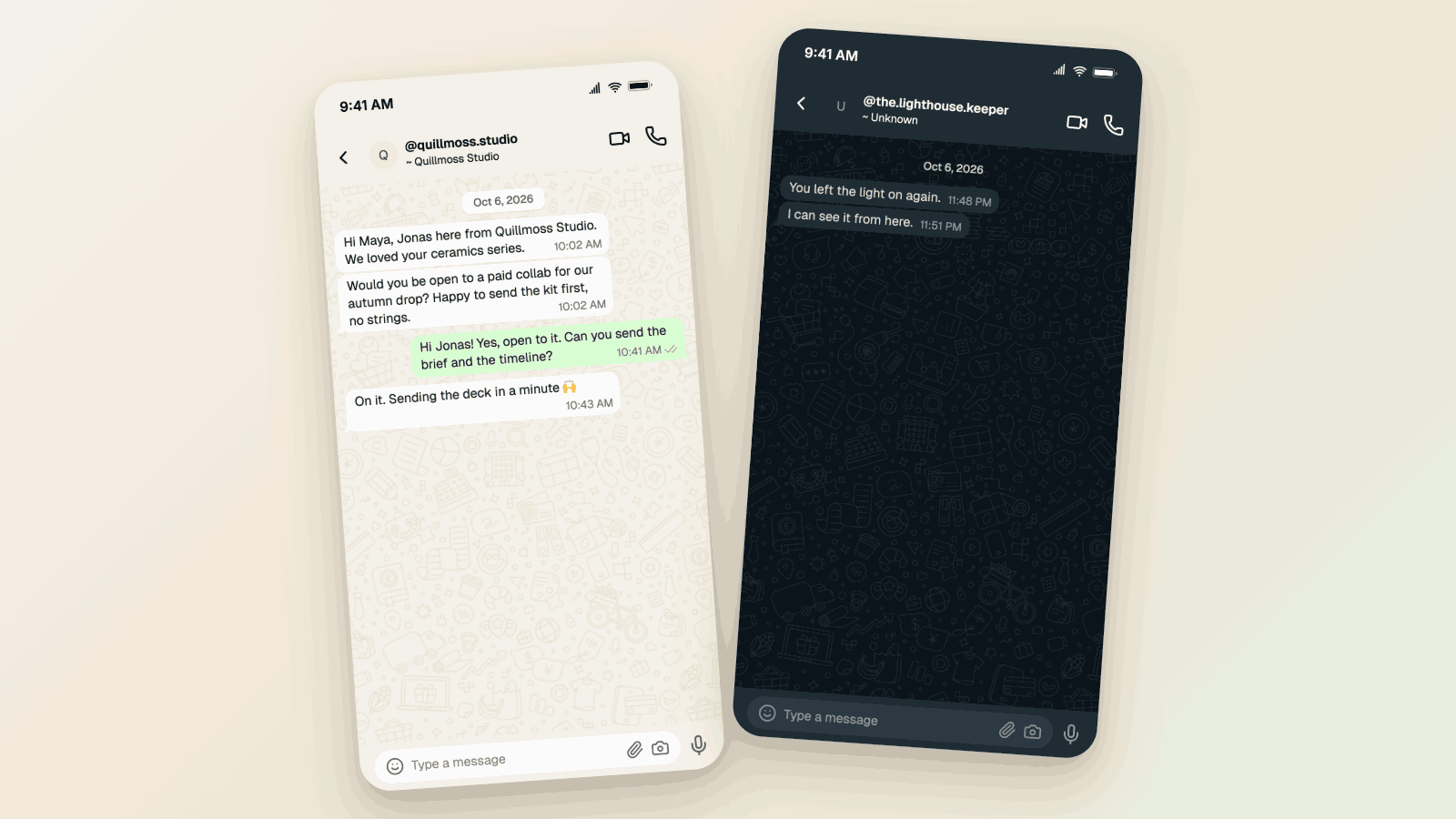
Maya, a ceramics creator, gets a collab request from Quillmoss Studio (a made-up brand). She has never saved their number, so WhatsApp shows the handle.
What makes it work:
- The
@handle is the tell. It says "first contact" before anyone reads a message. - The
~in front of the name means WhatsApp is showing the sender's own profile name, not one Maya saved. - No ticks on the incoming side. Ticks only sit on the messages you send.
- One read reply from Maya, with blue ticks, so the brand knows she has seen it.
Here is the header up close:
And the same chat, live. Give the contact a username and the header switches:
First contact by username
The @username header for a contact you have not saved
Example 2: The Same Chat With a Saved Contact
Now a chat with Sanne, a friend Maya saved years ago. No username, so the header shows her name and "Online".
- This is still the default. Testimonials, tutorials, and most content use a saved contact.
- Compare the two headers. Name and "Online" means "we know each other".
@handleand~ Namemeans "we just met". That contrast is the whole lesson.
Example 3: The Unknown Sender, Dark Mode
A short-film prop: a late-night message from @the.lighthouse.keeper, push name "Unknown". Two messages, no reply.
- Dark mode and a stranger's handle do the suspense work. The viewer reads the header before the messages.
- Keep the handle within WhatsApp's rules (3 to 35 characters, lowercase, periods and underscores, at least one letter). A handle with capitals or spaces reads as fake on a big screen.
- More prop ideas in fake chat screenshots for filmmakers.
Making Your Mockups Feel Natural
Write Like a Real Person
The dialogue makes or breaks a mockup:
- Contractions are your friend ("I'm" not "I am")
- Abbreviations when they fit ("btw", "gonna")
- Emojis, but don't overdo it
- Short messages, people don't write novels in WhatsApp
Timing Matters
Think about how real conversations flow:
- Quick back-and-forth when both people are active
- Hours-long gaps when someone's busy (totally normal)
- Time of day that makes sense for the context
Small Details Add Up
- The occasional typo (just one or two, not a mess)
- Blue ticks only on the messages that were read
- A status bar time that fits the last message
A note on dark mode
Dark mode mockups tend to do well on social media. They are easier on the eyes, especially when people scroll at night.
How to Build One in Mockly
- Open the WhatsApp chat generator.
- Set the sender and the contact. Add names and avatars. You are the sender, in green on the right. The contact is on the left. For a contact you have not saved, type an @username in the contact's Username field.
- Add messages with timestamps and sent, delivered, or read states.
- Pick the look: light or dark mode, wallpaper, device frame, or the 3D view.
- Export a PNG, or a chat video.
Free to try, no signup needed. Your first export is free, and a free account adds 3 more. Premium adds HD and 4K, video, and watermark-free export. See the plans.
If your contact is a verified business, turn on Verified badge too. The business name and blue seal stay on top, with the @username underneath.
Group chats
Usernames in group chats are out of scope here: the Username field applies to one-on-one chats. For groups, see the WhatsApp group chat mockups guide and the group chat generator.
Common Questions
Is it legal to create fake WhatsApp screenshots?
For legitimate purposes like marketing, education, and creative projects, yes. Where it gets problematic is using mockups to deceive people, defame someone, or impersonate a real person. Don't do that.
Can people tell if a mockup is fake?
A well-made mockup is hard to tell apart from a real screenshot. If you use one in advertising or a regulated context, disclosure rules may apply. Curious how people spot fakes? Read how to spot a fake screenshot.
Can Mockly show a WhatsApp username?
Yes. Give the contact an @username in the WhatsApp editor and the header switches to the unsaved-contact layout: @username on top, their name as a ~ push name underneath.
What does the ~ in front of a name mean on WhatsApp?
It marks a name that comes from the other person's own profile, because you have not saved them. Mockly adds it automatically when a contact has a username.
Does the phone number show in a username chat?
No. WhatsApp hides the number on both sides until you save each other, so a username mockup should not show one either.
Can I mock up the username key?
No, and you do not need to. The key is a prompt someone types before their first message. It never appears in the chat itself.
Can I create group chats?
Yes. Multiple participants, custom group names, profile pictures, the works.
Mockly is independent and not affiliated with WhatsApp or Meta.
Related Guides
- WhatsApp Business Chat Mockups for Sales Decks and Demos
- WhatsApp Group Chat Mockups: A Practical Guide
- How to Make Telegram Chat Mockups
- How to Make Discord Message Mockups
- How to Make Fake Instagram DMs
- How Marketers Use Mockly
Start Creating
Pick the header your story needs and build it in the WhatsApp chat generator. Free to try, no signup needed.
Try it yourself
Create your first mockup in under a minute
40+ apps. Free to try, no signup needed.
Start your mockupAbout the author
Elena Brooks
Content Editor
Elena writes step-by-step tutorials and practical guides for creating realistic chat and social mockups. She focuses on helping creators quickly turn ideas into polished visuals that look believable in demos, landing pages, and client work.
Tags
More from the blog
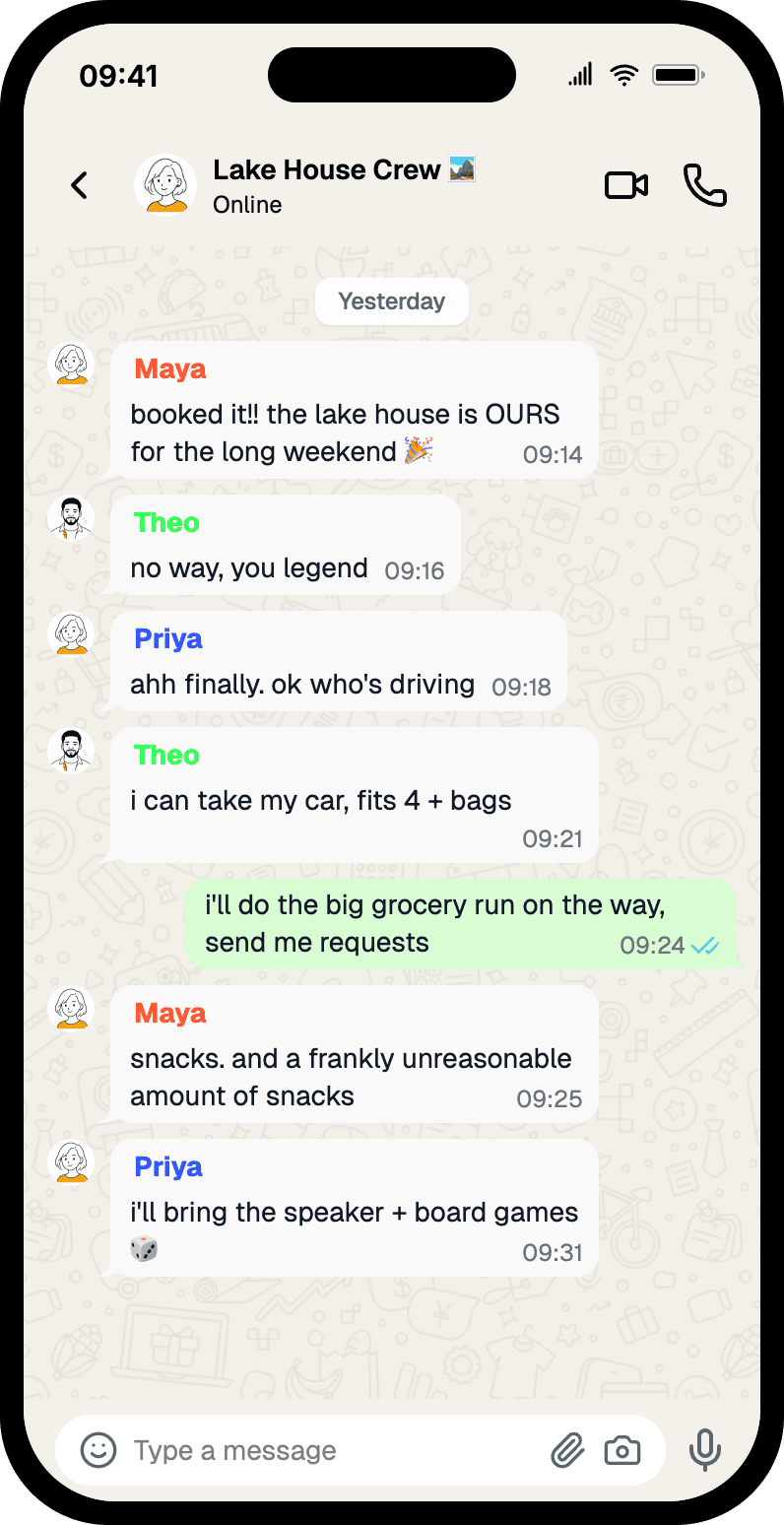
WhatsApp Group Chat Mockups: A Practical Guide
How to make WhatsApp group chat mockups that look real — group names, sender colors, read receipts, and pacing. Four worked examples you can copy.

What Makes a Mockup Feel Real on Screen
The realism cues that make chat, AI, social, and phone-screen mockups feel believable on landing pages, in decks, and on camera.

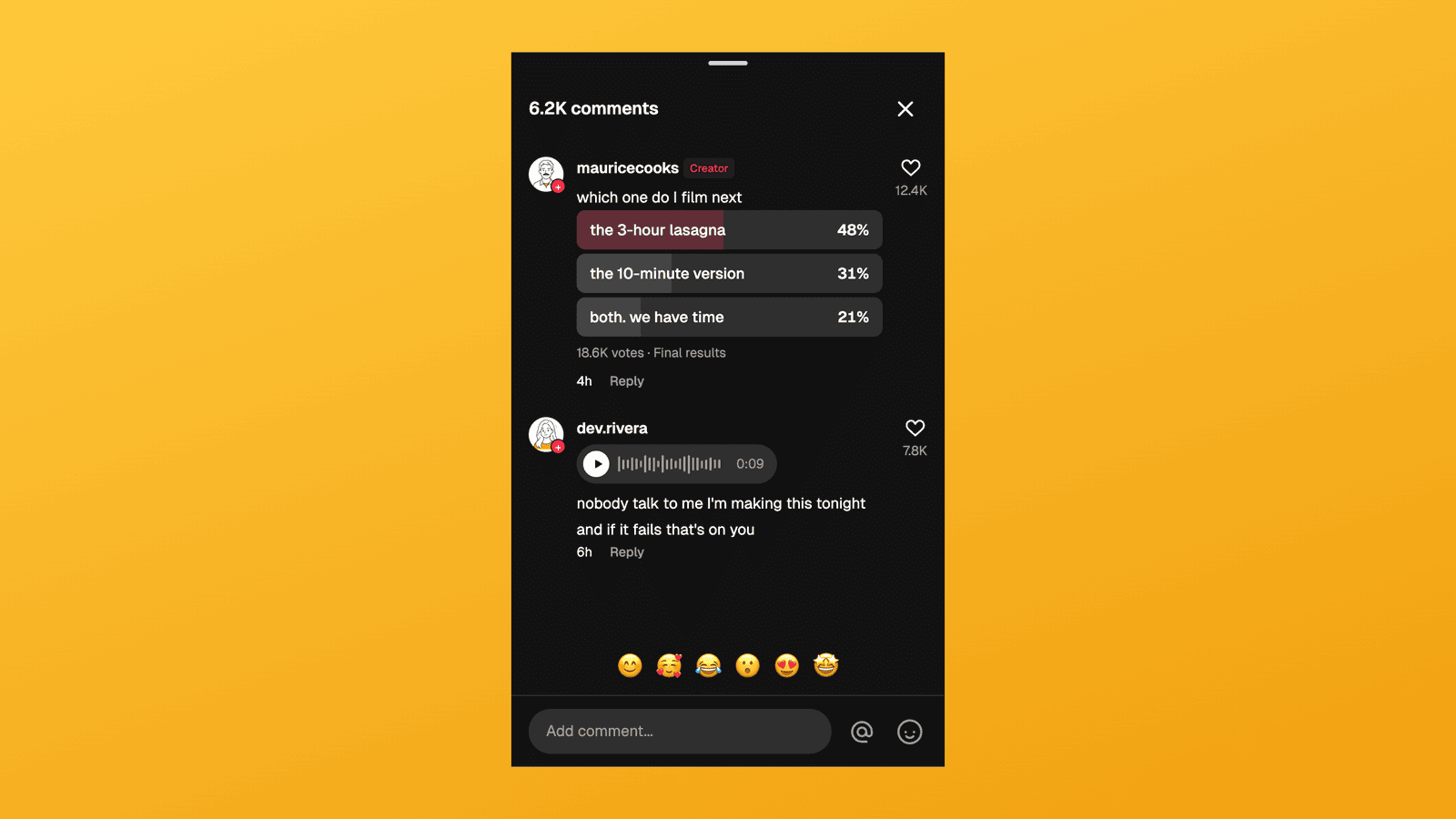
TikTok Comment Template: Voice Comments, Polls and Replies
Make TikTok comment mockups with voice comments and creator polls, plus the Creator badge, replies and heart counts. Free to try, no signup needed.