
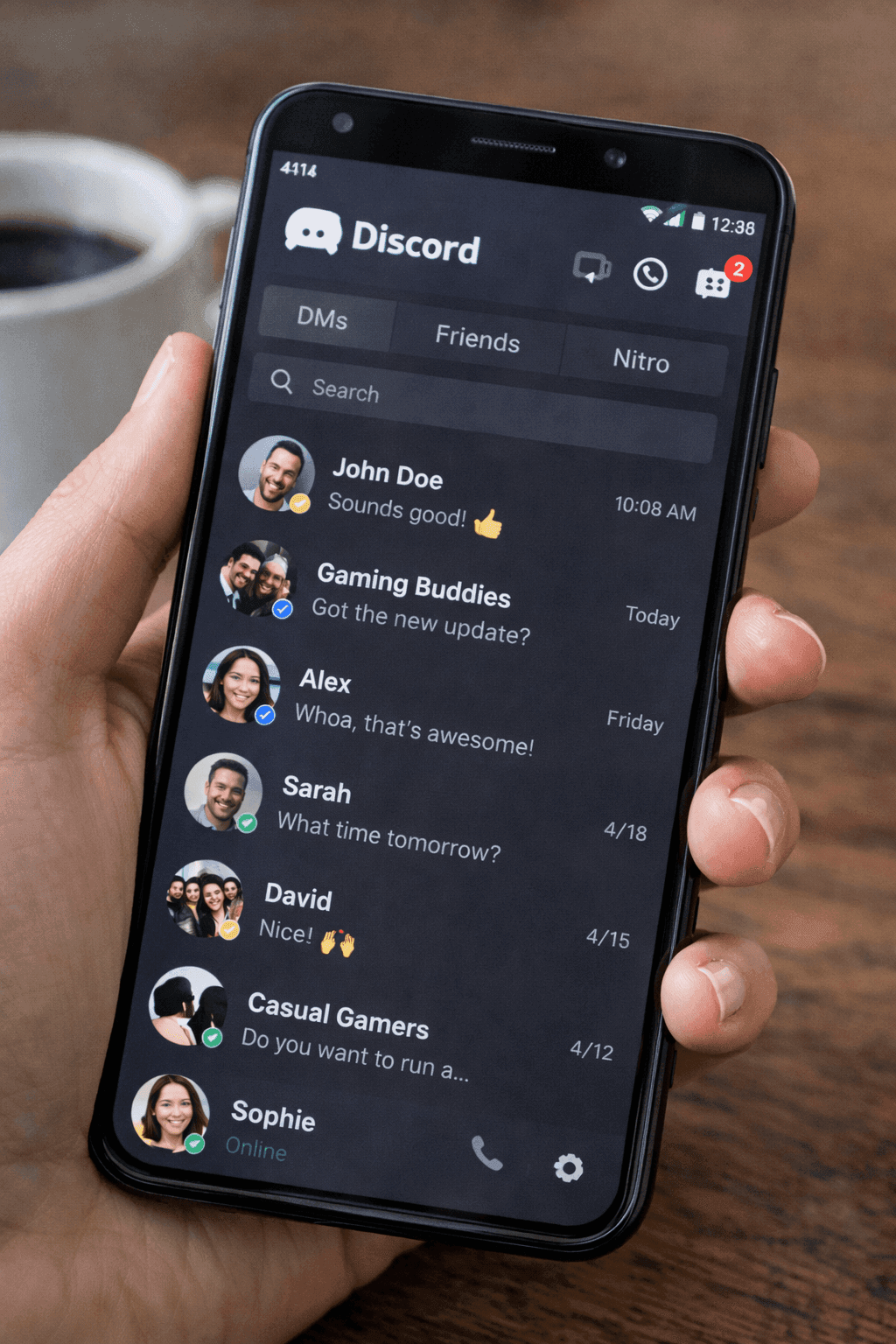
What Is a Fake Discord Message Generator?
A fake Discord message generator is an online tool that lets you create realistic Discord chat mockups without using the actual app. You set up usernames, role colors, and messages, then export the result as an image. It's useful for content creators, community managers, and marketers who need Discord-style visuals for their work.
If you've spent any time in Discord servers, you know the vibe: late-night raid planning, chaotic general chats, the perfect reaction GIF at just the right moment. It's where communities actually hang out, not just post updates and leave.
That's probably why you're here. Maybe you're a community manager showcasing server culture, a content creator making memes, or a marketer trying to reach the gaming crowd. Whatever the reason, you need Discord mockups that look like they belong.
This guide walks through how to create Discord message mockups that actually feel like Discord.
Fast Steps
- Open the Discord message mockup generator.
- Choose DM or channel layout.
- Add users, role-colored names, and avatars.
- Write short messages and image messages.
- Switch light or dark mode.
- Export a PNG mockup or use chat video export.
You can also open the Discord editor directly or compare it with the broader chat mockup hub.
Why Create Fake Discord Messages?
A few reasons people make Discord mockups:
- Server promotions: "Look how chill our community is" (except you need visuals to prove it)
- Meme creation: Sometimes the funniest conversation didn't happen (yet)
- Tutorial content: Showing how bot commands work without spamming your actual server
- Gaming content: Highlight reels, coordination moments, the clutch callout
- Marketing: If your audience lives on Discord, your content should look like it belongs there
- Mod training: Examples of what to do (or not do) without naming real users
Getting the Look Right
Discord has a very specific aesthetic: dark theme, colored usernames, compact message grouping. If these details are off, people notice instantly.
Creating Discord Message Mockups
Step 1: Access the Generator
Head to Mockly's Discord message generator. Free to try. Just open it and start building.
Step 2: Set Up Your Server/DM Context
Choose your conversation type:
- Direct Message (DM): One-on-one conversation
- Server Channel: Messages in a server with channel name and topic
Step 3: Configure Users
For each participant, you can customize:
- Username: Their display name (Discord's current
@handleformat) - Role color: The colored username based on server roles
- Avatar: Profile picture
- Bot badge: If it's a bot account
Step 4: Add Messages
Create your conversation with Discord-specific elements:
- Text messages with markdown support
- Image attachments
- Timestamps that match Discord's "Today at" / "Yesterday at" format
Here's what a typical server moment might look like. Raid planning in a gaming community:
Gaming Community
Server channel interaction
Step 5: Customize Appearance
A few things to dial in:
- Theme: Dark mode is standard (light mode exists, but nobody admits to using it)
- Compact mode: Some power users prefer the denser layout
- Message grouping: Consecutive messages from the same person get grouped
- Timestamps: Hover-reveal vs always visible
Stick to Dark Mode
Seriously, use dark mode. It's what Discord users expect. Light mode mockups look... off.
Step 6: Export
Export your mockup in high resolution:
- PNG for best quality
- Transparent background option
- Multiple resolution options
- 3D phone view for hero shots and thumbnails
That 3D angle is one toggle in the editor. It works well when the mockup is the visual itself, like a thumbnail or a landing page hero, rather than something pretending to be a screenshot.
Discord-Specific Features
Role Colors
Discord users display different colors based on their server roles:
- Admins often have red or gold
- Moderators might be green or blue
- Bots typically have distinct colors
- Regular members stay white/gray
Message Formatting
Discord supports rich text formatting:
- Bold:
**text** - Italic:
*text* Strikethrough:~~text~~Code: `code`-
Quotes
- Spoilers:
||text||
Bot Messages
For bot interaction mockups, the Bot badge appears next to the username so it reads as a bot account. Combine with a custom avatar and a clear name to sell the look.
Discord Mockup Examples
Community Welcome
Welcome Message
New member onboarding
Support Interaction
Support Channel
Customer support example
Tips for Convincing Discord Mockups
Match the Culture
Discord has its own communication style. It's not LinkedIn. It's not even casual Twitter. Think:
- Casual, often chaotic
- Heavy emoji and reaction use (🔥, poggers, various custom emotes)
- GIFs everywhere
- Gaming slang, abbreviations, inside jokes
Use Appropriate Timestamps
Discord shows timestamps differently:
- Today: Just the time (2:30 PM)
- Yesterday: "Yesterday at 2:30 PM"
- Older: Full date (01/21/2026 2:30 PM)
Common Questions
Can I create Discord DM mockups?
Yes! Mockly supports both server channel messages and direct message (DM) mockups with the same level of customization.
How do I add bot messages?
Toggle the bot badge on any participant. Combine with a custom avatar and an appropriate name to make it read clearly as a bot account.
Related Platforms
Creating content for multiple apps? Try these generators:
Related Guides
Looking to create mockups for other purposes? Check out these guides:
- How to Make Fake WhatsApp Chat
- How to Make Fake Instagram DMs
- Complete Guide to Fake Screenshots
- How Marketers Use Mockly
Start Creating
Ready to make your own? Try Mockly's Discord generator. Free to try, no download. GG.
Try it yourself
Create your first mockup in under a minute
40+ apps. Free to try, no signup needed.
Start your mockupAbout the author
Elena Brooks
Content Editor
Elena writes step-by-step tutorials and practical guides for creating realistic chat and social mockups. She focuses on helping creators quickly turn ideas into polished visuals that look believable in demos, landing pages, and client work.
Tags
More from the blog
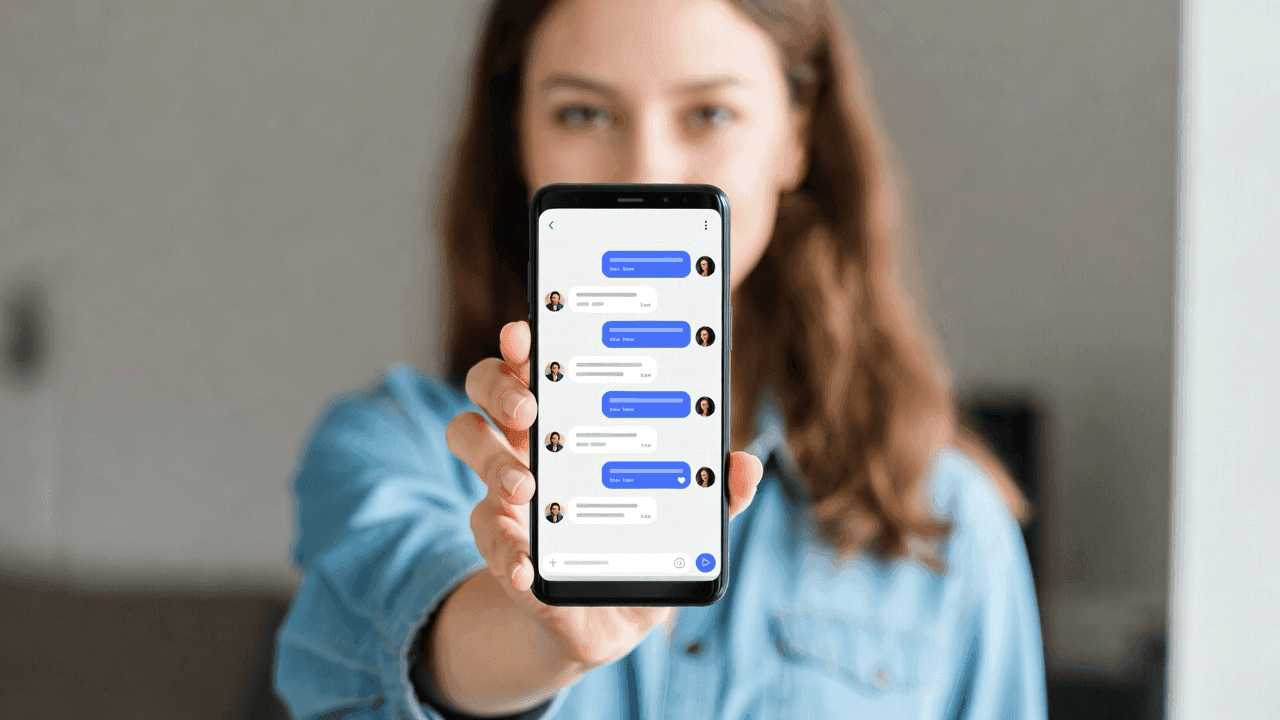
How to Make Fake Chat Screenshots (2026 Guide)
Step-by-step guide to creating fake WhatsApp, iMessage, and Discord chat mockups. Free online generator, no download needed. For marketing and content creation.
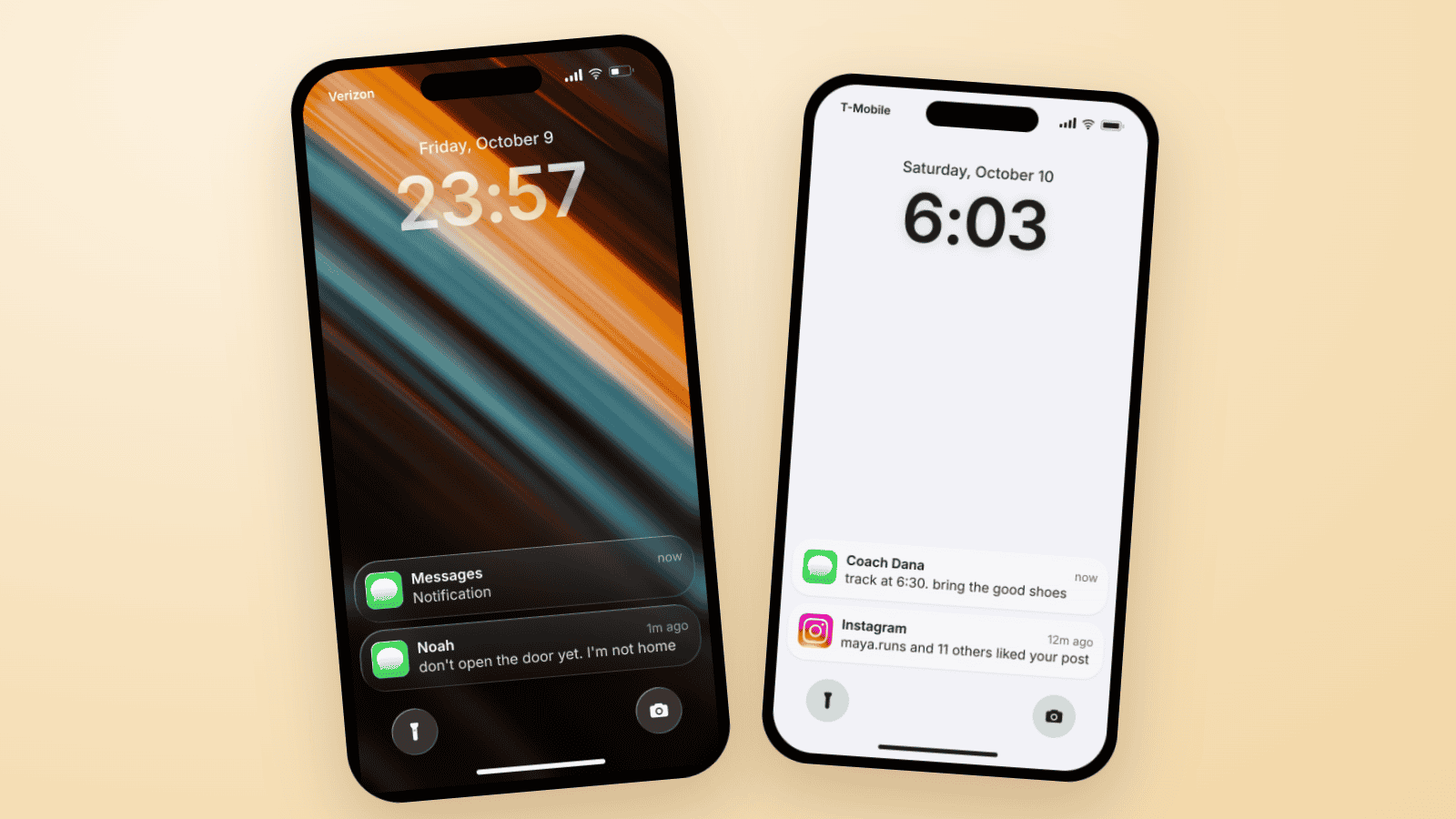
Fake Text on Lock Screen Trend: Build the TikTok Slide
The fake lock screen trend is a TikTok carousel slide: wallpaper, a late clock, one text, a mystery notification. Three examples you can build in Mockly.
WhatsApp Username Chat Mockups: The @Handle Header (2026)
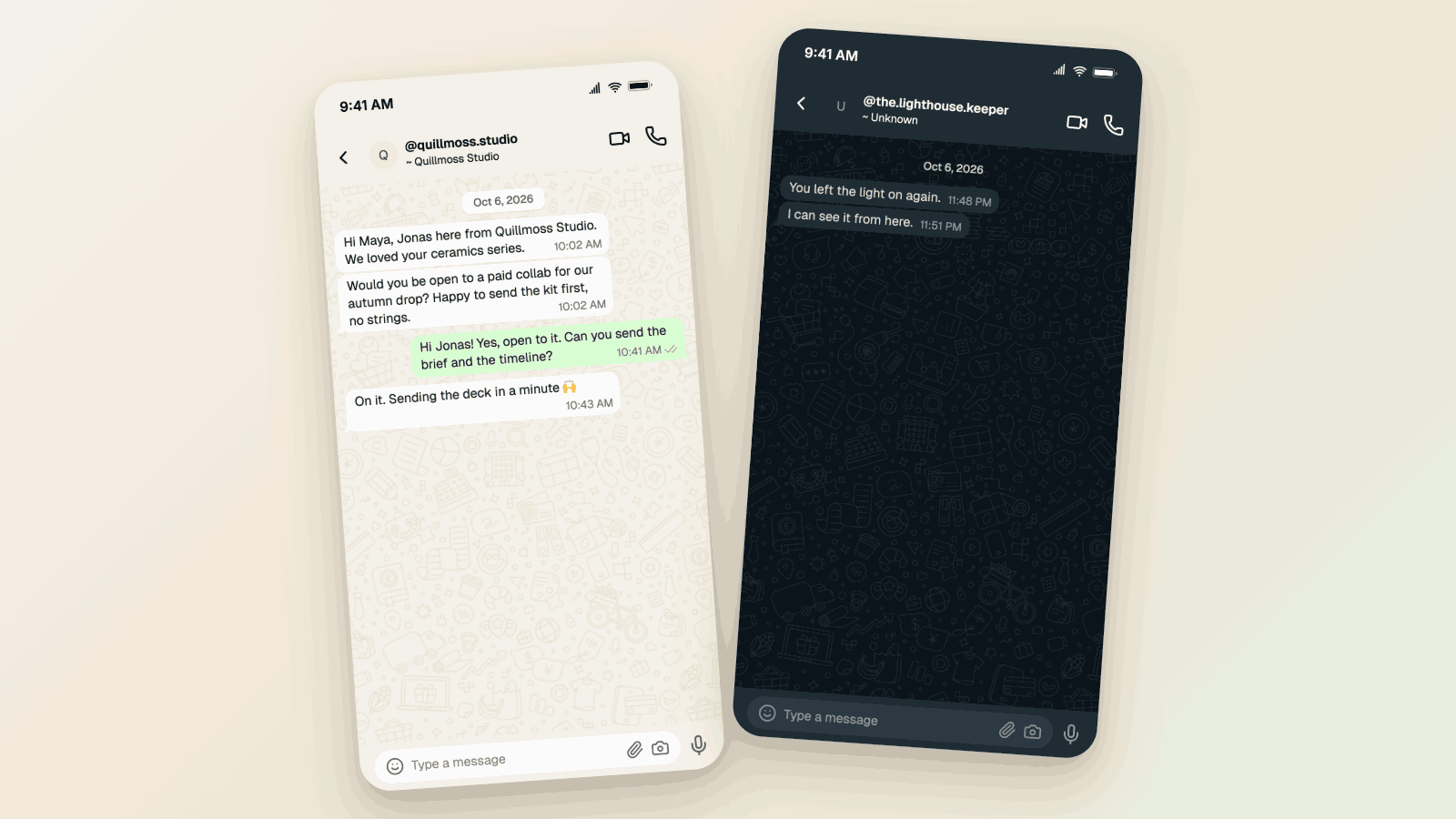
Make a WhatsApp chat mockup with the @username header. What the 2026 username rollout changed, what stayed, and three examples you can copy. Free to try.