

What LINE Chat Mockups Are Useful For
LINE mockups work well for tutorials, creator content, storyboards, and client presentations where LINE is the app your audience expects. Start with Mockly's LINE message mockup generator when you need a clean, editable version of the conversation.
Use It Responsibly
Use LINE mockups for fictional examples, approved material, education, and design work. Do not use them to impersonate someone or manipulate another person.
Step-by-Step
1. Open the LINE Editor
Use the LINE chat editor and choose the message flow you want to build.
2. Add People
Set sender and receiver names, then add more participants if you need a group chat.
3. Add Messages and Images
Write short messages, add images where needed, and keep each line easy to read.
4. Adjust Dates and Timestamps
Use timestamps and dates to make the sequence feel natural. Avoid time jumps that distract from the point.
5. Add Phone Context
Use a device frame or 3D phone view if the asset needs to look like it belongs on a phone.
6. Export
Export a PNG mockup for decks, posts, documentation, and course material.
LINE Realism Checklist
- Use a direct message for simple one-to-one examples.
- Use a group chat only when multiple voices matter.
- Keep names short and readable.
- Use image messages only when they add context.
- Check the mockup at the size where it will be published.
Related Pages
FAQ
Can I make LINE group chat mockups?
Yes. LINE supports group chat mockups in Mockly.
Does LINE support 3D view?
Yes. Use the device frame and 3D view when you want the mockup to appear inside a phone.
Can I export LINE videos?
Chat mockups support video export. Use it when the message sequence needs motion.
Try it yourself
Create your first mockup in under a minute
40+ apps. Free to try, no signup needed.
Start your mockupAbout the author
Elena Brooks
Content Editor
Elena writes step-by-step tutorials and practical guides for creating realistic chat and social mockups. She focuses on helping creators quickly turn ideas into polished visuals that look believable in demos, landing pages, and client work.
Tags
More from the blog
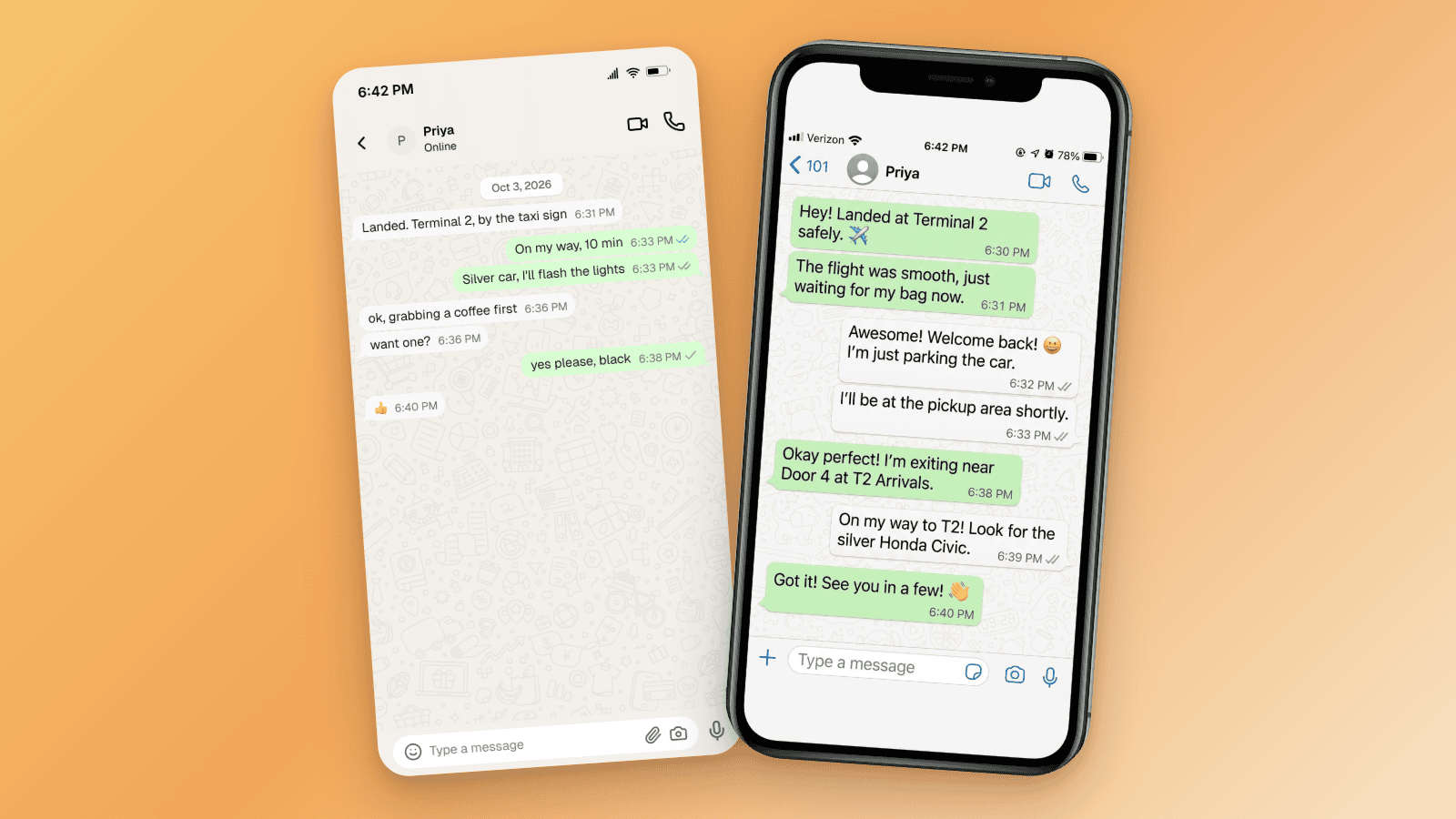
How to Tell If a Screenshot Is AI Generated: 6 Checks
Screenshots can be AI generated now. Run these six checks: SynthID and OpenAI Verify, Content Credentials, reverse image search, and the UI tells per app.

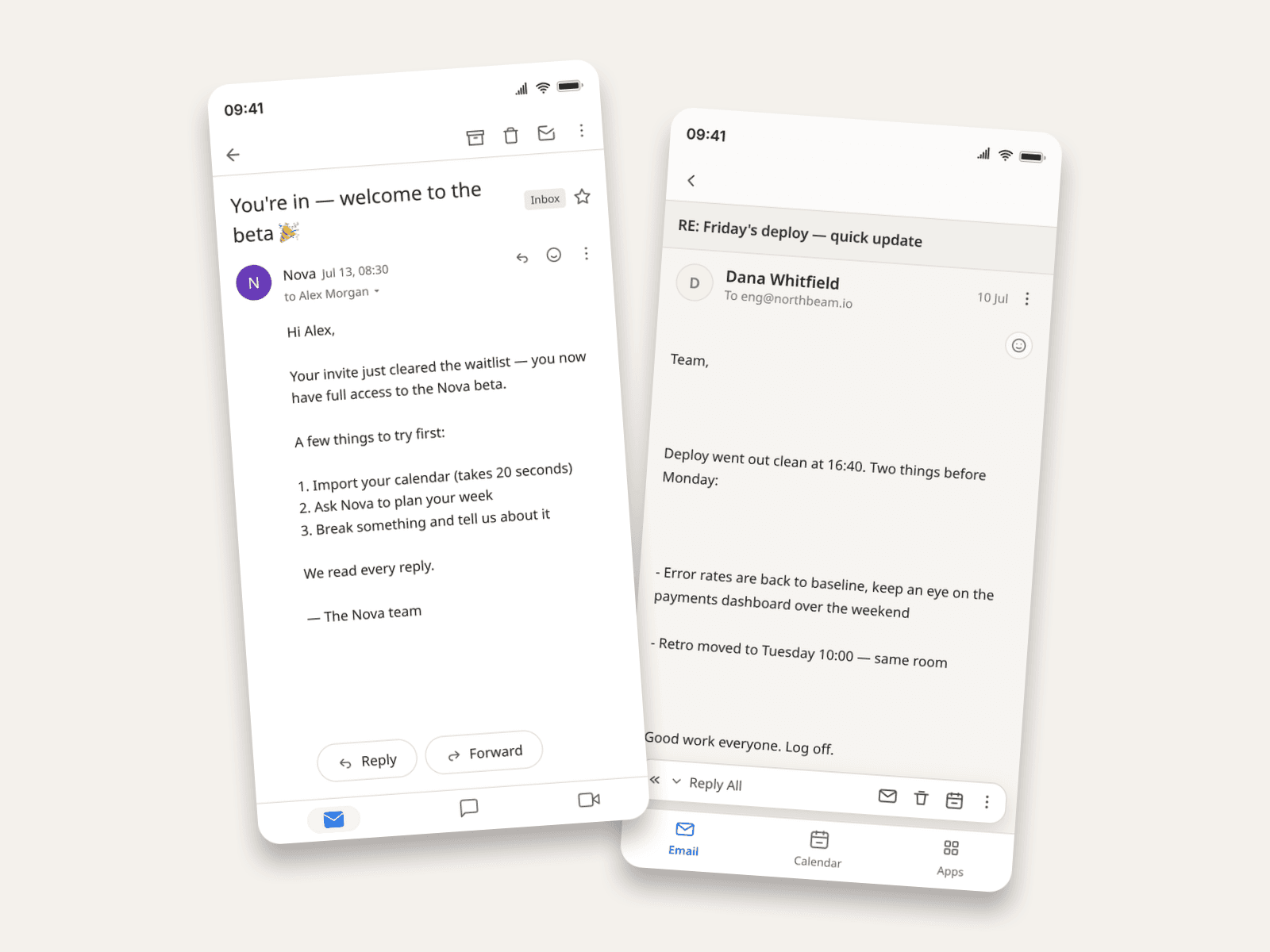
How to Make Fake Email Screenshots (Gmail, Outlook, Apple Mail)
Create realistic email mockups in Gmail, Outlook, and Apple Mail for product demos, phishing-awareness training, film props, and course material. Worked examples included.
How to Create Redacted Email Mockups
Create redacted email mockups for education, production, security training, and presentations. Learn how to redact names, addresses, and body text.