

Why You'd Fake an Email Screenshot
Emails show up in content constantly, and real ones are almost never usable. The welcome email you want to showcase has a customer's address in it. The internal memo that explains your point is confidential. The phishing example you need for security training is, well, actual phishing.
An email mockup solves all three: you write the sender, subject, and body yourself and export a screenshot that looks exactly like Gmail, Outlook, or Apple Mail, with no real inboxes involved.
This guide builds one example in each app with Mockly, and covers the details that make an email read as real.
Fictional senders only
Email mockups are for demos, training, props, and course material. Don't fabricate emails from real people or companies and present them as genuine. That includes screenshots framed as "leaked". For the redacted-thread aesthetic done ethically, see the redacted email guide.
The Anatomy of a Believable Email Screenshot
- Sender name vs. address. The display name is bold, the address is grey and smaller. Mismatch between the two is a storytelling tool (see the phishing example below).
- A subject that sounds like the genre. Welcome emails celebrate. Office emails say "RE:" and "quick update". Scams say "Urgent".
- The app's own chrome. Gmail, Outlook, and Apple Mail each have distinct headers, avatars, and toolbars. A generic white rectangle with text fools nobody.
- Realistic paragraph rhythm. Real emails have short paragraphs, a list if they're organized, and a sign-off that matches the sender's culture.
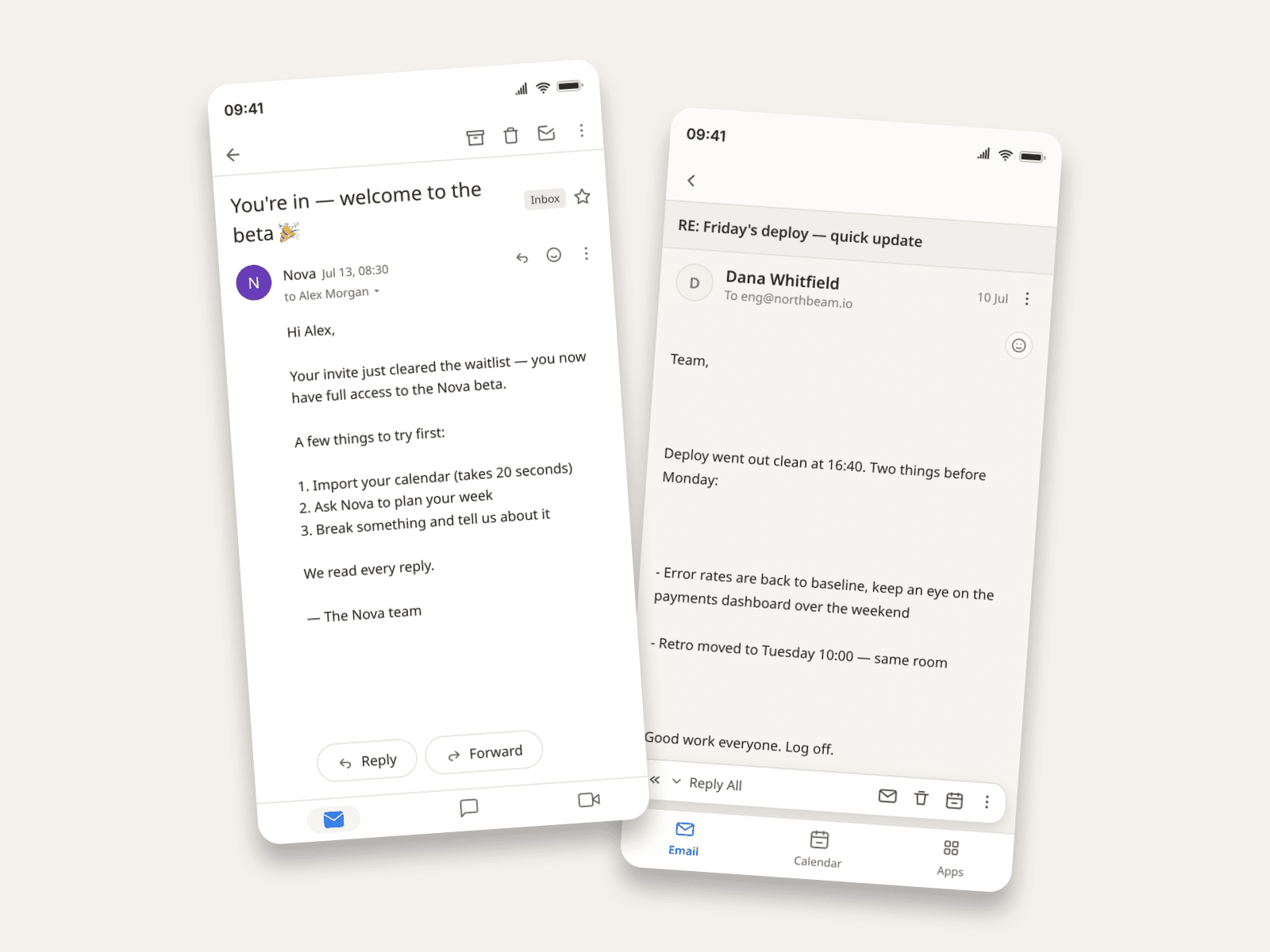
Example 1: The Product Welcome Email (Gmail)
The screenshot every SaaS landing page and onboarding-flow case study needs, without exposing a real user's inbox.
What sells it:
- The sender is the product, the recipient is a person.
hello@usenova.appwriting to a Gmail address, exactly how the real thing arrives. - A numbered list. Onboarding emails always have one. Three items, verbs first.
- "We read every reply." One human line. Corporate welcome emails that sound entirely automated read as filler content.
Example 2: The Internal Office Email (Outlook)
For workplace storytelling, corporate-training decks, and film props, Outlook is the office. The chrome instantly signals "work".
The details that carry it:
- "RE:" in the subject. Office threads are perpetual replies. A pristine subject line looks like the first day of a new job.
- Sent Friday at 5 PM. The timestamp is the joke, if you want it to be.
- "Log off." Voice makes fiction believable. This manager has a personality in two words.
Example 3: The Phishing-Awareness Sample (Apple Mail)
Security trainers have a real problem: you can't paste actual phishing emails into course material, but sanitized descriptions don't teach pattern recognition. A mockup gives you a realistic specimen you fully control.
Every red flag is placed on purpose:
- The lookalike domain.
paypa1-alerts.com, the classic "1 for l" swap, right where trainees should learn to look. - Deliberate grammar slips. "you're account", "within 24 hour". Real scam tells, reproduced safely.
- Urgency plus a deadline. The emotional lever every phishing email pulls. Your training slide can now point at it.
This is the same reason educators use chat mockups: realistic examples you own, with none of the risk of real ones.
How to Build One in Mockly
- Pick the app: Gmail, Outlook, or Apple Mail. Each renders its real interface.
- Write the participants. Sender name and address, recipient. The mismatch between them is yours to script.
- Write the subject and body. Line breaks are preserved; URLs render as links.
- Set the date and status bar to match the story.
- Export. Clean PNG, up to 4K on Premium. Try it free, no signup needed, and see the plans for what Premium adds.
There's also a fourth style: the "leaked email" look with redacted names and addresses, for commentary and storytelling formats.
Common Mistakes to Avoid
- A sender address that's too clean for the story. Scam mockups with
security@paypal.comteach the wrong lesson. The tell is in the domain. - Wall-of-text bodies. Real emails breathe. Two-line paragraphs, one list, a sign-off.
- Wrong app for the scene. Outlook for the office, Gmail for consumer products, Apple Mail for personal iPhone scenes. The chrome is half the context.
- Perfect grammar in a phishing sample. The errors are the curriculum. Keep them.
Related Guides
- How to Create Redacted Email Mockups
- Chat Mockups for Teachers & Course Creators
- Message Mockups for Marketing Presentations
- Complete Guide to Fake Screenshots
FAQ
Which email apps does Mockly support?
Gmail, Outlook, Apple Mail, and a "leaked" redacted style. Four renderers, each matching its real interface.
Can I make a fake email screenshot for free?
Yes. The email editor is free to use, no signup needed. Premium adds HD/4K and watermark-free export.
Can I redact names and addresses?
Yes. Each participant has redaction toggles for the name and address, which is how the "leaked email" style works.
Is it OK to make fake phishing emails?
For training and education, yes. That's one of the best uses. Build the specimen with a fictional lookalike domain, point at the red flags, and never send it anywhere.
Can I show a whole thread?
Yes, add multiple messages to the conversation and they render as a thread in the app's style.
Start Creating
Write the email your content needs: the welcome, the memo, or the teaching specimen. Open the email editor and export it in minutes.
Try it yourself
Create your first mockup in under a minute
40+ apps. Free to try, no signup needed.
Start your mockupAbout the author
Elena Brooks
Content Editor
Elena writes step-by-step tutorials and practical guides for creating realistic chat and social mockups. She focuses on helping creators quickly turn ideas into polished visuals that look believable in demos, landing pages, and client work.
Tags
More from the blog

What Makes a Mockup Feel Real on Screen
The realism cues that make chat, AI, social, and phone-screen mockups feel believable on landing pages, in decks, and on camera.

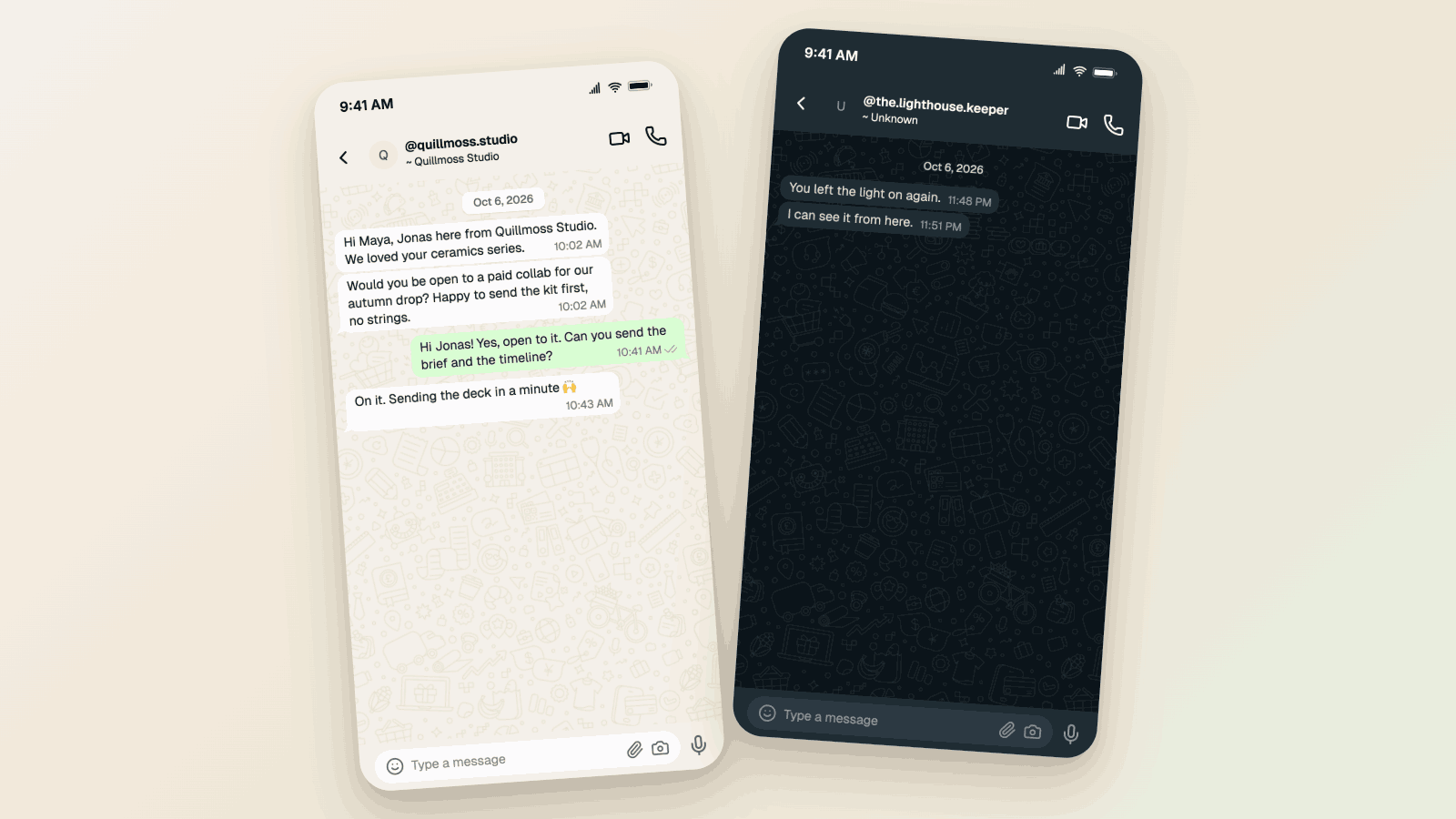
WhatsApp Username Chat Mockups: The @Handle Header (2026)
Make a WhatsApp chat mockup with the @username header. What the 2026 username rollout changed, what stayed, and three examples you can copy. Free to try.
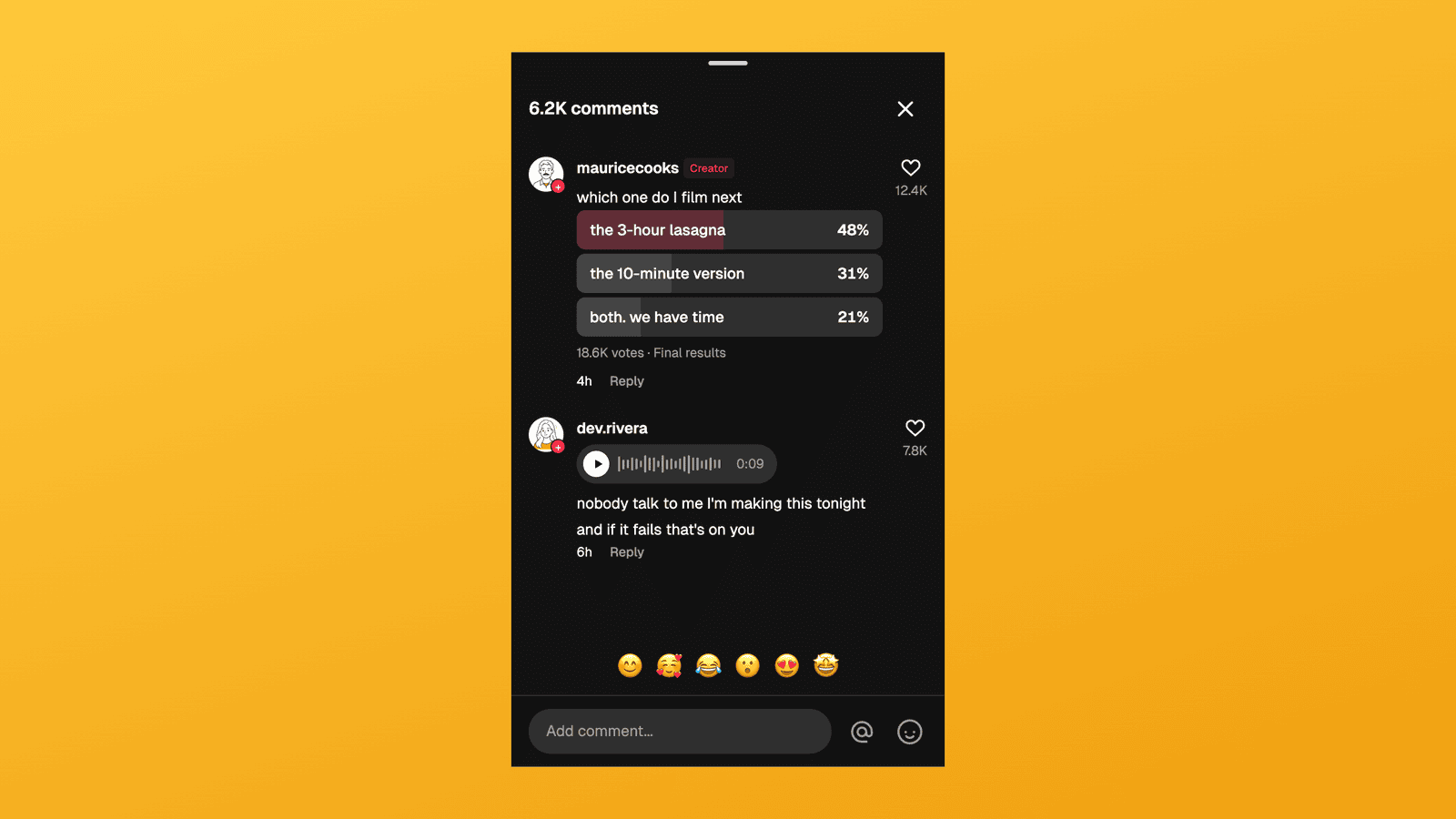
TikTok Comment Template: Voice Comments, Polls and Replies
Make TikTok comment mockups with voice comments and creator polls, plus the Creator badge, replies and heart counts. Free to try, no signup needed.