
Why Fake ChatGPT Screenshots Are Everywhere
Scroll any feed and you'll hit one: a screenshot of someone asking ChatGPT something absurd, and the AI playing along. AI-conversation screenshots have become their own content genre, covering memes, course material, product demos, and "I asked AI to…" videos. And most creators are making them the hard way: prompting the real app over and over, hoping the answer comes out funny, then cropping the screenshot.
A ChatGPT mockup flips that. You write both sides of the conversation, the prompt and the perfect answer, and export a clean image or video. The AI says exactly what the joke needs, the formatting looks native, and no real chat history is exposed.
This guide builds ChatGPT mockups in Mockly and covers the details that make them believable, starting with the one everyone gets wrong.
Label your AI content honestly
ChatGPT mockups are for entertainment, tutorials, demos, and course material. Don't use one to claim OpenAI's products said something they didn't, especially in news-shaped content. Fictional and clearly-comedic uses are the lane.
Detail #1: The Model Name Has to Be Current
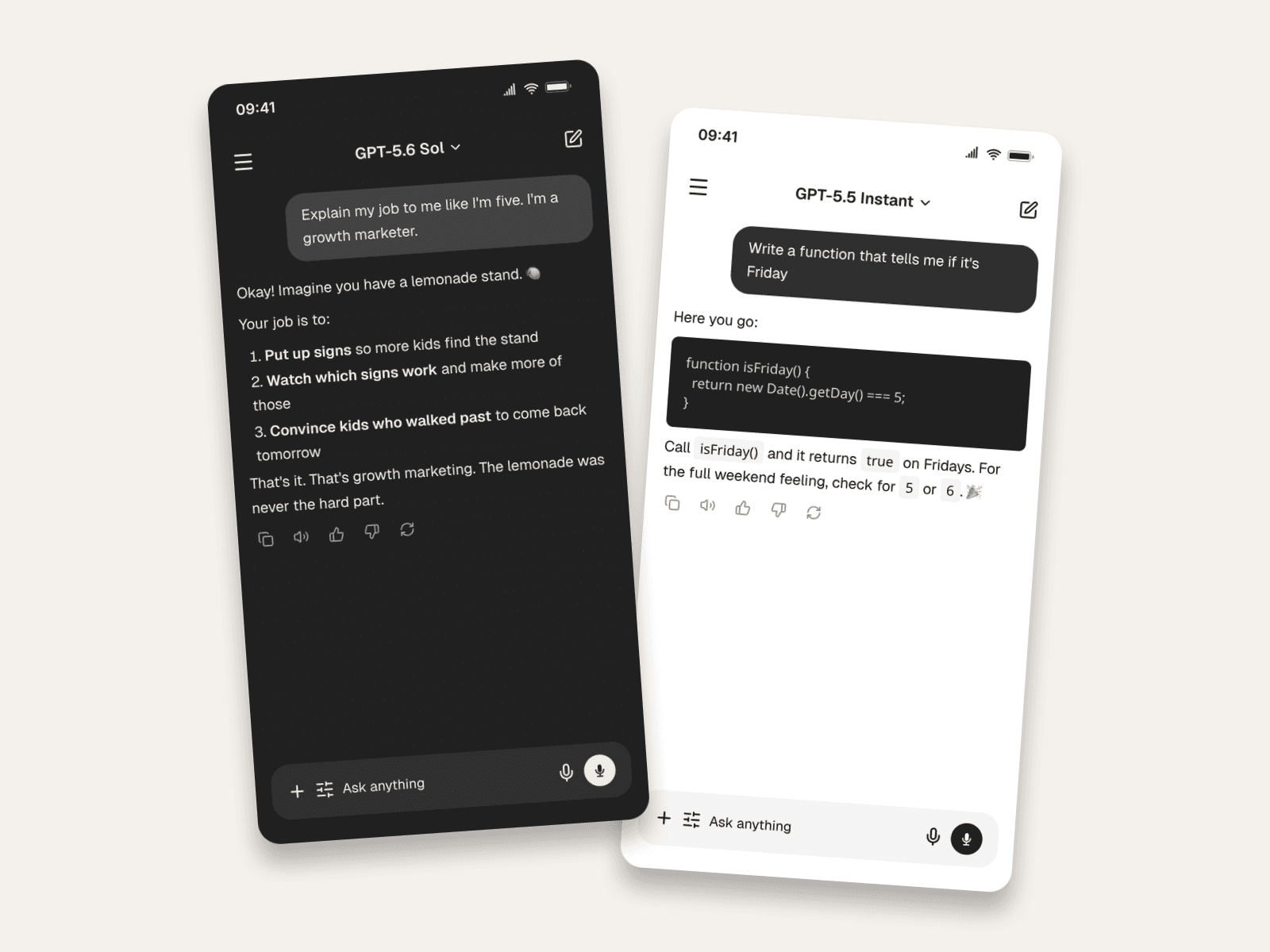
The header of every ChatGPT screenshot shows the active model, and it's the fastest way to date (or expose) a fake. A screenshot claiming to be from this week that says "GPT-4o" in the header is either old or manufactured. As of mid-2026 the picker shows GPT-5.5 Instant for everyday chats and GPT-5.6 Sol for the thinking modes.
In Mockly the model label is a text field. The editor ships with the current lineup, and when OpenAI renames things again, you just type the new label.
Example 1: The Comedy Prompt
The classic format: a deadpan absurd request, an AI that commits to the bit. Dark mode, because that's how most people run ChatGPT, and how most viral screenshots look.
What makes it read as real:
- The answer is formatted like ChatGPT formats. A warm opener, a numbered list with bold lead-ins, a kicker line at the end. Plain-paragraph answers look fake because the real app almost never writes them.
- The action icons sit under the answer. Copy, read-aloud, thumbs up/down, regenerate. Mockly renders the full row automatically.
- One emoji. ChatGPT sprinkles them lightly. A wall of them breaks character.
Example 2: The Code Answer
For dev-adjacent content, tutorials, and course slides: the answer with a syntax-highlighted code block. Assistant messages in Mockly render full Markdown, including headings, lists, tables, and fenced code.
Details worth stealing:
- The code block is real formatting, not a screenshot-in-screenshot. Write
```jsfences in the answer and the renderer does the rest. - The model matches the task. Quick everyday answer, so "GPT-5.5 Instant". A deep reasoning answer would sit under "GPT-5.6 Sol". Readers who use ChatGPT daily notice.
- A human closer. The line after the code block ("For the full weekend feeling…") is what separates ChatGPT's voice from documentation.
Making ChatGPT Videos, Not Just Screenshots
Static screenshots work for memes; video is where AI content performs. Mockly's AI chat video export animates the conversation the way the real app behaves: your prompt appears, a beat of silence, then the answer streams in word by word like a typewriter. That streaming moment is the part that makes viewers stop scrolling. They've watched it a hundred times in the real app.
Video export is a Premium feature and works for every AI platform Mockly supports: ChatGPT, Claude, Gemini, Grok, and Perplexity.
How to Build One in Mockly
- Open the ChatGPT editor. Dark and light mode both match the real app.
- Set the model label. The current lineup ships as presets; the field is editable for whatever OpenAI calls things next month.
- Write the user prompt. Short and specific. The prompt is the setup for the joke or the demo.
- Write the answer in Markdown. Lists, bold, headers, code fences. Study how ChatGPT actually structures answers and mimic it.
- Export. PNG for a post, or video with the streaming-text animation. Try it free, no signup needed; Premium adds video, HD/4K, and watermark-free export. See the plans.
Common Mistakes to Avoid
- An outdated model in the header. The 2026 picker says GPT-5.5 Instant and GPT-5.6 Sol. "GPT-4" dates your screenshot by two years.
- Unformatted answers. ChatGPT loves structure. If your fake answer is one long paragraph, it won't scan as ChatGPT.
- An answer that's too perfect for the bit. The charm of AI-comedy screenshots is the AI being earnestly, methodically wrong. Keep the earnest structure, bend the content.
- Missing the input bar. "Ask anything" at the bottom is part of the visual signature. Leave the footer on.
- Claiming it's real. Watermark it as a mockup in news-adjacent contexts. Comedy doesn't need the disclaimer; commentary does.
Related Guides
- ChatGPT vs Claude vs Gemini Mockups
- Chat Video Generator for TikTok Storytelling
- What Makes a Mockup Feel Real on Screen
- Complete Guide to Fake Screenshots
FAQ
Can I make a fake ChatGPT screenshot for free?
Yes. The ChatGPT editor is free to use, no signup needed. Your first export is free, and a free account adds 3 more. Premium adds HD and 4K, video export, and watermark-free images.
Does it support the current GPT models?
Yes. The model label ships with the current lineup (GPT-5.5 Instant, GPT-5.6 Sol) and stays a free-text field, so your mockups never go stale when OpenAI renames models.
Can the fake answer include code blocks and tables?
Yes. Assistant messages render full Markdown: fenced code with highlighting, tables, lists, headings, and bold text, just like the real app.
Can I animate the conversation?
Yes. Video export plays the prompt, pauses, then streams the answer in like a typewriter, matching the rhythm of the real app. Video is part of Premium.
Can I make fake Claude or Gemini chats too?
Yes. The same editor covers Claude, Gemini, Grok, and Perplexity, each with its own accurate interface. See the comparison guide for which fits your content.
Start Creating
Write the prompt you wish you'd asked and the answer you wish it gave. Open the ChatGPT editor and export your first AI conversation in minutes.
Try it yourself
Create your first mockup in under a minute
40+ apps. Free to try, no signup needed.
Start your mockupAbout the author
Elena Brooks
Content Editor
Elena writes step-by-step tutorials and practical guides for creating realistic chat and social mockups. She focuses on helping creators quickly turn ideas into polished visuals that look believable in demos, landing pages, and client work.
Tags
More from the blog
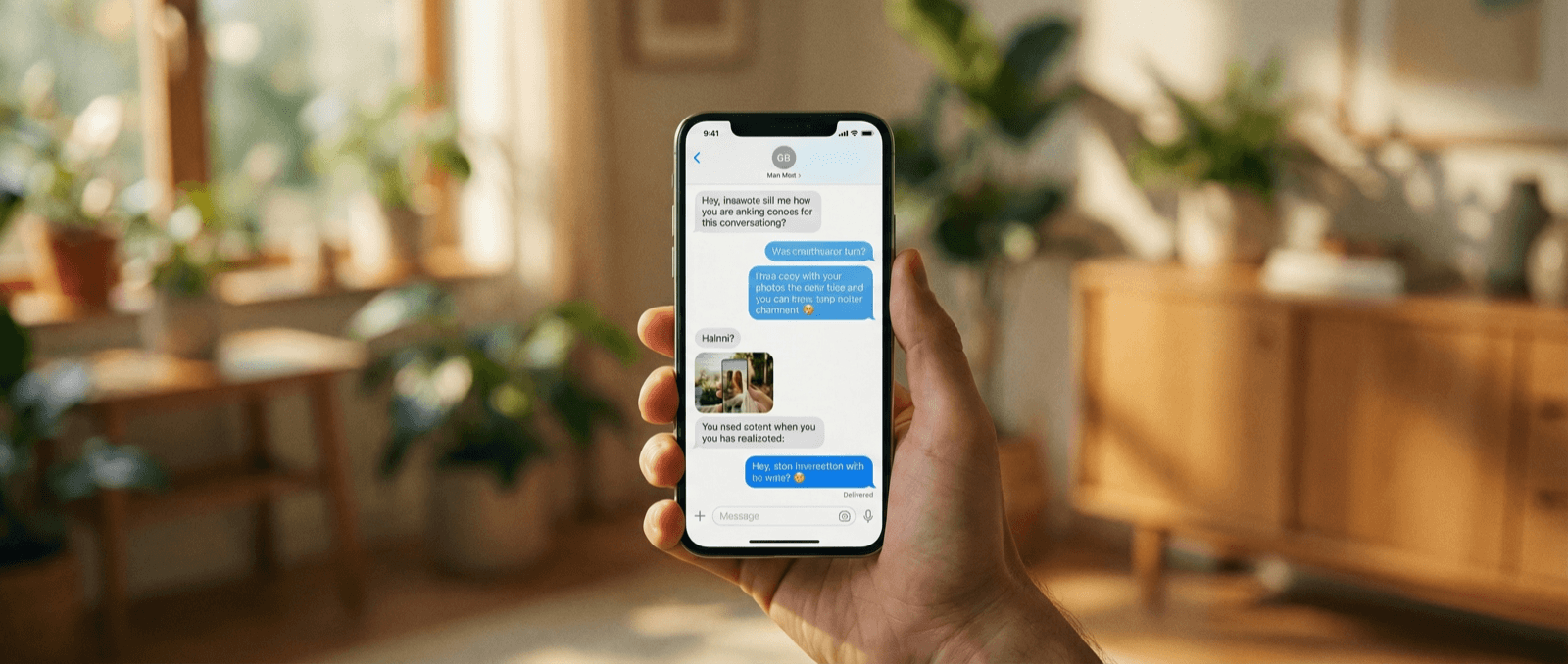
What Makes a Mockup Feel Real on Screen
The realism cues that make chat, AI, social, and phone-screen mockups feel believable on landing pages, in decks, and on camera.
WhatsApp Username Chat Mockups: The @Handle Header (2026)
Make a WhatsApp chat mockup with the @username header. What the 2026 username rollout changed, what stayed, and three examples you can copy. Free to try.
TikTok Comment Template: Voice Comments, Polls and Replies
Make TikTok comment mockups with voice comments and creator polls, plus the Creator badge, replies and heart counts. Free to try, no signup needed.