
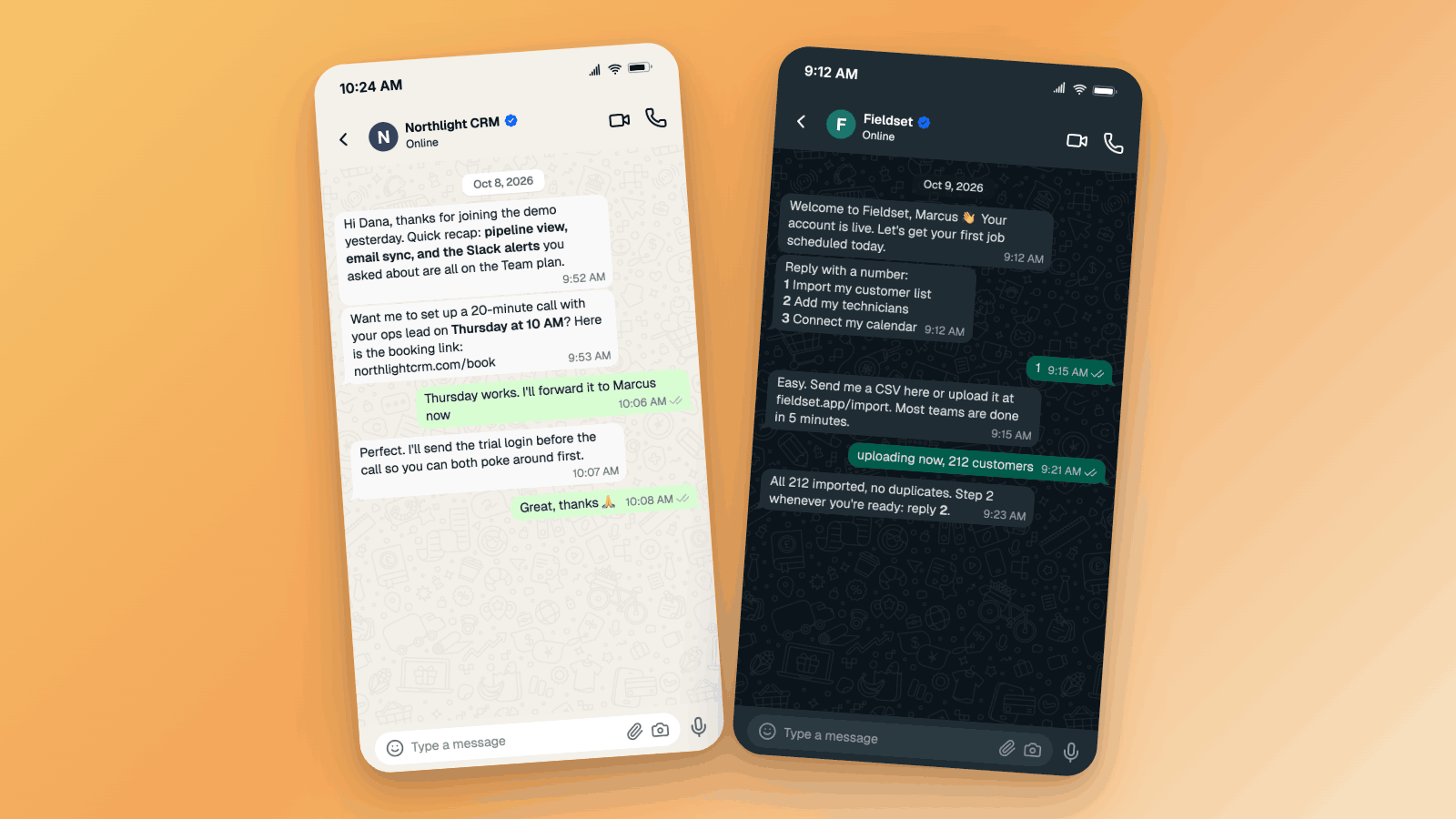

Sales decks and product demos used to carry a blurred screenshot of a real customer thread, with a black bar over the phone number and a prayer that nobody zoomed in. Now teams rebuild the moment as a WhatsApp Business chat mockup: same flow, same outcome, names and logo swapped. Here are four you can copy, plus the small details that make a business chat read as a business chat.
Mockups, not fabrications
Use a real flow and a real outcome, with permission, and swap the names, numbers, and logo. Never invent a customer result, and never present a mockup as a real conversation with a real business.
Why WhatsApp Business Flows End Up in Decks
WhatsApp is where a lot of your customers already are. A slide that shows the flow on a phone, in the app they open fifty times a day, lands harder than a feature list ever will. The buyer stops imagining and starts recognizing.
It is also getting easier to set up. In September 2026 Meta started letting an AI agent create and run a WhatsApp Business account, so expect more teams to pitch WhatsApp flows this quarter. Every one of those pitches needs a picture of the conversation.
Who builds these mockups:
- Sales teams showing the demo follow-up a prospect will actually get.
- Onboarding and customer success walking a new account through day one.
- Support leads proving that a problem gets solved in chat, not in a ticket queue.
- E-commerce and ops showing order updates customers can answer.
- Agencies pitching a chatbot or an automation to a client.
All of them start in the same place: the WhatsApp chat generator.
What Makes a WhatsApp Business Chat Look Real
A business chat and a chat with a friend use the same bubbles. The difference is in the details:
- A business name with the blue verified badge. The seal next to the name is the fastest way to say "this is a company". Pair it with the logo as the avatar. Turn on Verified badge on the business contact in Mockly.
- The customer on the right, the business on the left. The customer is you, in green. The business is the contact, in white.
- Ticks only on the customer's messages. Grey ticks turn blue when read, and they only ever sit on the messages you send.
- Short business messages. Two lines, three at most. Bold one fact per message: an order number, a time, a part name.
- Numbered options instead of buttons. Mockly does not draw reply buttons or product cards. Write the options as a numbered line ("Reply 1 to reschedule, 2 to cancel") and put a product photo in an image message. That is also how many businesses on the WhatsApp Business app run menus.
- Business hours. A support reply at 3:12 AM breaks the spell. Keep times inside a believable working day.
- 4 to 7 bubbles, one job per slide. A deck slide has seconds of attention. Show one moment.
Example 1: The Sales Follow-Up After a Demo
Northlight CRM (a made-up company) follows up the day after a demo. This is the slide that says "and here is what happens next" in a sales deck.
What makes it work:
- The business speaks first and keeps it to two messages. A recap, then a proposal. No wall of text.
- A concrete date and a link. "Thursday at 10 AM" and a booking link beat "let me know when works".
- The blue ticks sit on the customer's replies. That tiny detail is the one people spot when it is wrong.
- The badge and the logo make it a business. Without them, this reads like a rep texting from a personal number.
Example 2: Day-One Onboarding
Fieldset, a fictional field-service tool, welcomes a new customer and walks them through setup. The customer picks a step by replying with a number.
Details worth copying:
- Numbered options are the menu. "Reply with a number" plus three bold numbers does the job of API buttons, and it is honest about what a Business app chat looks like.
- One bold line per step. The eye jumps straight to the numbers.
- A concrete result. "All 212 imported, no duplicates" is believable. "Import complete!" is not.
- Dark mode. It looks better on a dark slide, and plenty of your customers run WhatsApp dark anyway.
Example 3: A Support Thread That Resolves
Kestrel Bikes, also made up, gets a photo of a bent bike rack and sorts it in six messages. Support leads use this format to show "we fix it in chat".
Why it reads as real:
- The photo is the customer's. It sits in a green image message, with the order number in the text under the photo.
- The resolution is specific. A part name and a ship date, both in bold. Vague promises look scripted.
- Six bubbles, nothing padded. Problem, apology, fix, one question, one answer, thanks.
Example 4: The Order Update
Juniper Goods, a fictional shop, sends a shipped notice. The customer changes the delivery address right in the chat.
What to steal:
- This is the template everyone recognizes. Order number, tracking link, delivery date. Your audience has received a hundred of these.
- Bold the order number. Wrap it in asterisks (
*#JG-88213*) and Mockly renders it bold, the same way WhatsApp does. - "Reply 1 to update the address." The numbered-option trick again, and the customer answers with a single "1".
Here is the header up close. The logo, the name, the blue seal, and "Online" do most of the work of saying "business account":
Deck, Demo, or Website: Pick the Export
The same mockup becomes a different file depending on where it goes.
- Sales deck. Turn the device frame on so it reads as "this is on the customer's phone". In the export options, pick the 16:9 canvas with the Black background, and export at 2x or 4x so it holds up on a projector.
- Demo video. Export the chat as a video and the flow plays out one message at a time, with typing dots before each one. Set a longer typing animation duration on the business replies so they feel considered, not instant.
- Website hero. Device frame off and a transparent background, then drop it into your own device illustration.
- A lot of slides. If you need twenty flows for a deck, render them from a script with the Mockly API, one payload per slide. The API also takes any hex color as the canvas background, so slides can match your brand.
HD, 4K, video export, and no watermark are Premium.
How to Build One in Mockly
- Open the WhatsApp editor. No account needed to start.
- Name the contact after the business and upload the logo as its photo.
- Turn on Verified badge on that contact. The blue seal shows next to the name in the header.
- Write the flow. The business messages come from the contact, the customer's replies come from you. Keep each under two lines and bold one fact per message with
*asterisks*. - Add a photo if the flow needs one. Attach a product or delivery photo as an image message and put the details in the text.
- Set the times to business hours, switch to the 12-hour clock if your audience expects it, and pick light or dark.
- Export. A PNG for a slide, a 16:9 canvas for a deck, or a video for a demo.
Free to try: your first export is free, a free account adds 3 more, both with a watermark at 1x, and a chat holds 7 messages. Premium adds unlimited messages, HD and 4K, video export, and no watermark. See the plans.
Common Mistakes to Avoid
- Blue ticks on the business's messages. Ticks belong on the messages you send as the customer.
- A rep's selfie as the business avatar. Use a logo. A face makes it a personal chat.
- Six-line business messages. Nobody reads them on a slide. Split or cut.
- A real customer's name. Swap it, even with permission to use the flow.
- A real brand's logo you do not own. Use your own logo or a made-up one.
- A conversation that resolves in two seconds. Space the replies a few minutes apart.
- Fake buttons drawn in an image editor. They never line up. Use numbered options.
Related Guides
- Fake Slack & Teams Messages for B2B Marketing
- How Agencies Use Chat Mockups in Pitch Decks
- WhatsApp Group Chat Mockups: A Practical Guide
- Slack vs WhatsApp vs iMessage for Testimonial Credibility
FAQ
Can I add the WhatsApp Business verified badge?
Yes. Turn on Verified badge on the business contact and the blue seal shows next to the name in the header. It works on one-on-one chats, which is how customers talk to a business anyway.
Can the business show an @username?
Yes. Type it in the contact's Username field. With the badge on, the business name and seal stay on top and the @username shows underneath. More on how WhatsApp usernames look in WhatsApp username chat mockups.
Can I show reply buttons or a product catalog?
Not as buttons or cards. Write the options as numbered lines in the business message, and use an image message for a product photo with the name and price in the text.
Is the WhatsApp Business mockup free?
It is free to try. Your first export is free and a free account adds 3 more, with a watermark at 1x and up to 7 messages per chat. Premium removes those limits.
Can I export it as a video for a demo?
Yes, with Premium. The video plays the chat one message at a time with typing dots, so the flow unfolds the way it would on a customer's phone.
Can I make it look like it is on a phone in a slide?
Yes. Turn on the device frame, export on a 16:9 canvas with a background, or switch to the 3D view for an angled phone.
Is it OK to make a WhatsApp Business mockup?
For your own product, a fictional scenario, or a real flow you have permission to show, yes. Never mock up a real business you do not represent, and never pass a mockup off as a real conversation.
Start Creating
Pick the flow your next slide needs and build it in the WhatsApp chat generator. Free to try, no signup needed.
Try it yourself
Create your first mockup in under a minute
40+ apps. Free to try, no signup needed.
Start your mockupAbout the author
Jordan Patel
Marketing Strategist
Jordan works with founders and growth teams to design testimonial visuals, ad creative, and pitch-deck slides that communicate trust quickly. He writes about practical ways to turn real conversations into persuasive marketing assets.
Tags
More from the blog
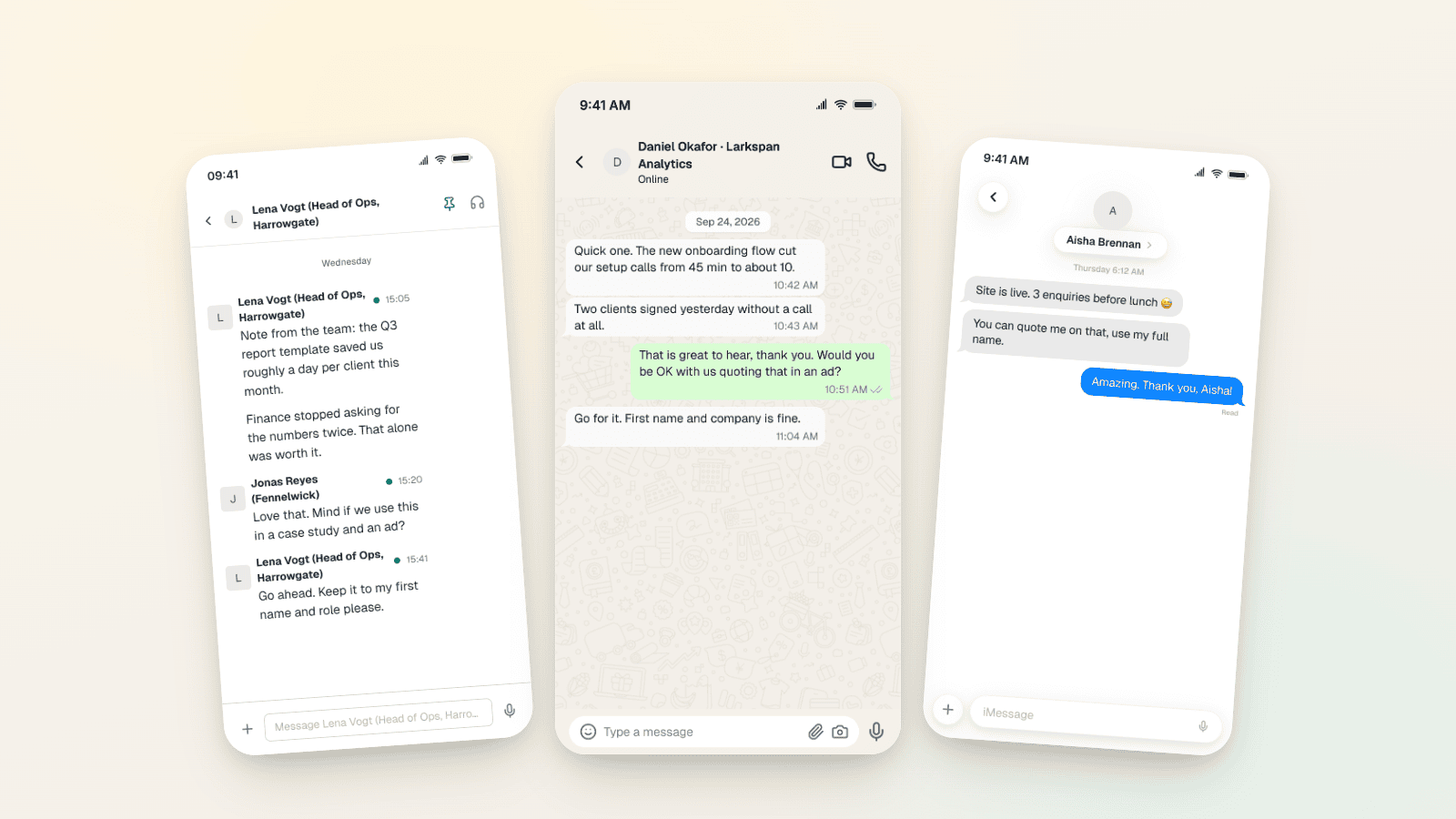
Testimonial Ad Examples 2026: Chat Screenshot Formats
Five testimonial ad formats for Meta in 2026, with WhatsApp, Slack and iMessage screenshot examples, 1:1, 4:5 and 9:16 sizes, and the FTC and EU rules.

How Agencies Use Chat Mockups in Pitch Decks
How agencies use WhatsApp, Slack, Instagram DM, and comment mockups to make strategy decks, campaign concepts, and proof slides easier to buy into.
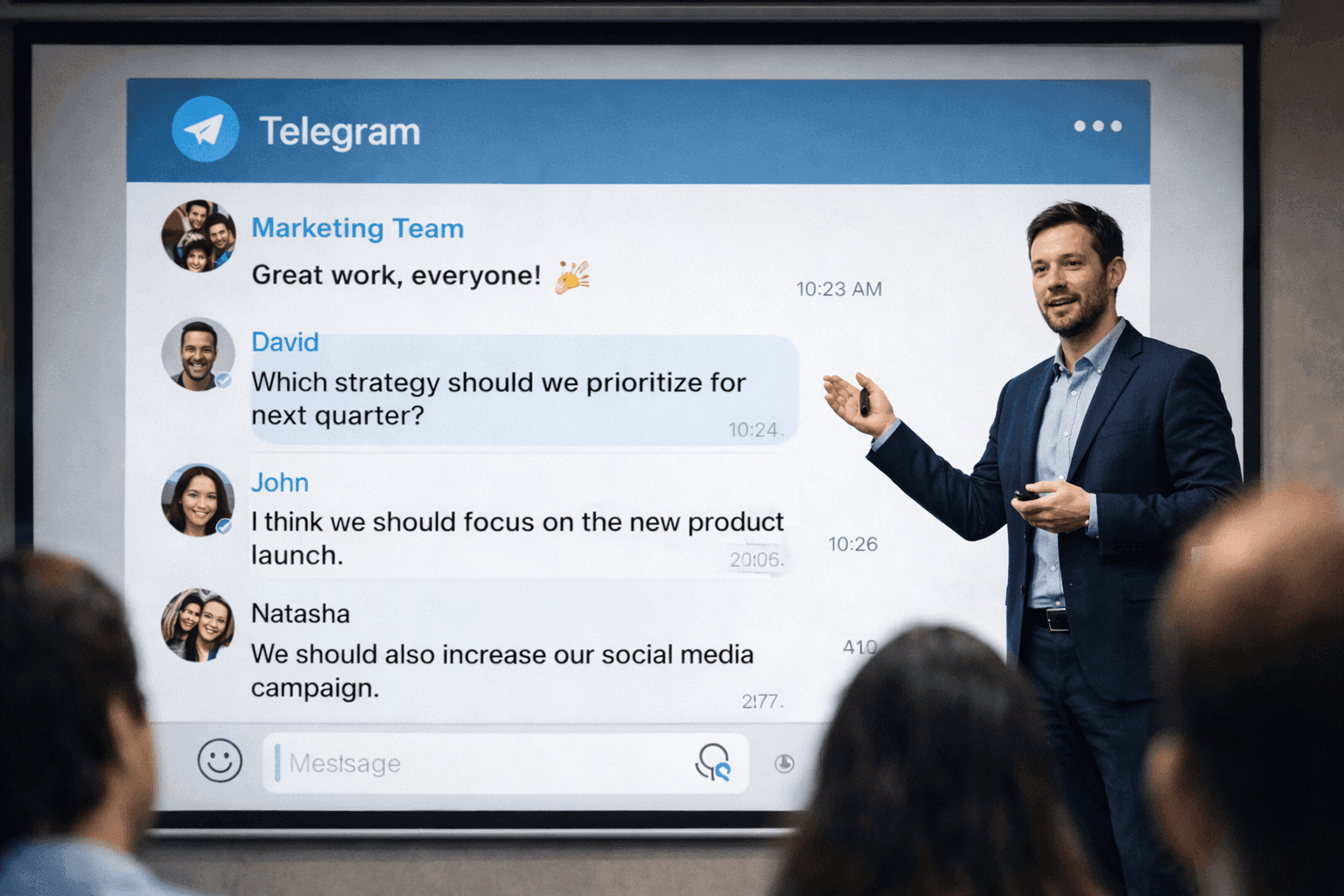
Message Mockups for Marketing Presentations (2026)
How to create message mockups for marketing presentations, pitch decks, and client proposals. Free tools for agencies and marketers.