
What the Fake Lock Screen Trend Is
Scroll TikTok for a minute and you will hit one: a carousel where one slide looks like an iPhone lock screen. A moody wallpaper, a clock that says it is way too late, one text that starts mid-conversation, and a second notification you can't read.
It is usually slide 3 of a glow-up or day-in-the-life carousel. Slides 1 and 2 set the scene, the lock screen drops the twist, and the caption refuses to explain. That is the whole trick. The viewer fills in the missing story, then heads to the comments to guess it.
Two variants show up a lot. Fanfic accounts build lock screens for fictional characters (the "fake lockscreen notification for AU" posts). And friends prank each other with a lock screen that looks alarming until the reveal.
You can build every version of this in Mockly's iOS notification editor. If you want the general guide first, start with the fake iPhone notification generator.
Storytelling, not deception
This trend works because everyone knows it is a story. Use it for fictional characters, skits, fanfic, glow-up carousels, and pranks your friend is in on. Don't use it to invent texts from real people, fake a payment proof, or claim "someone really sent me this".
The Four Things the Slide Needs
Every lock screen slide that pulls comments has the same four parts:
- A calm, dark wallpaper. Moody beats busy. The text has to be the brightest thing on screen.
- A late or early clock. 23:57, 02:14, 6:03. The hour does half the storytelling before anyone reads a word.
- One message that starts mid-conversation. Never "Hi". Start where the drama already is: "don't open the door yet".
- A mystery second card. Something the viewer can't read, so they have to imagine it.
Then the realism details, which the iPhone notification guide covers in full:
- The stack sits at the bottom of the screen, not in the middle.
- A text shows the sender's name, not "Messages".
- Time labels differ. Two cards that both say "now" look staged.
- The card material samples the wallpaper behind it.
You don't need an iOS 27 trick to look current. iOS 27 kept the big clock as the default, so a big-clock lock screen is what most iPhones show right now. Mockly's Liquid Glass card style sits in the middle of the new iOS 27 glass slider, so it reads as current either way.
Example 1: The Storytime Opener
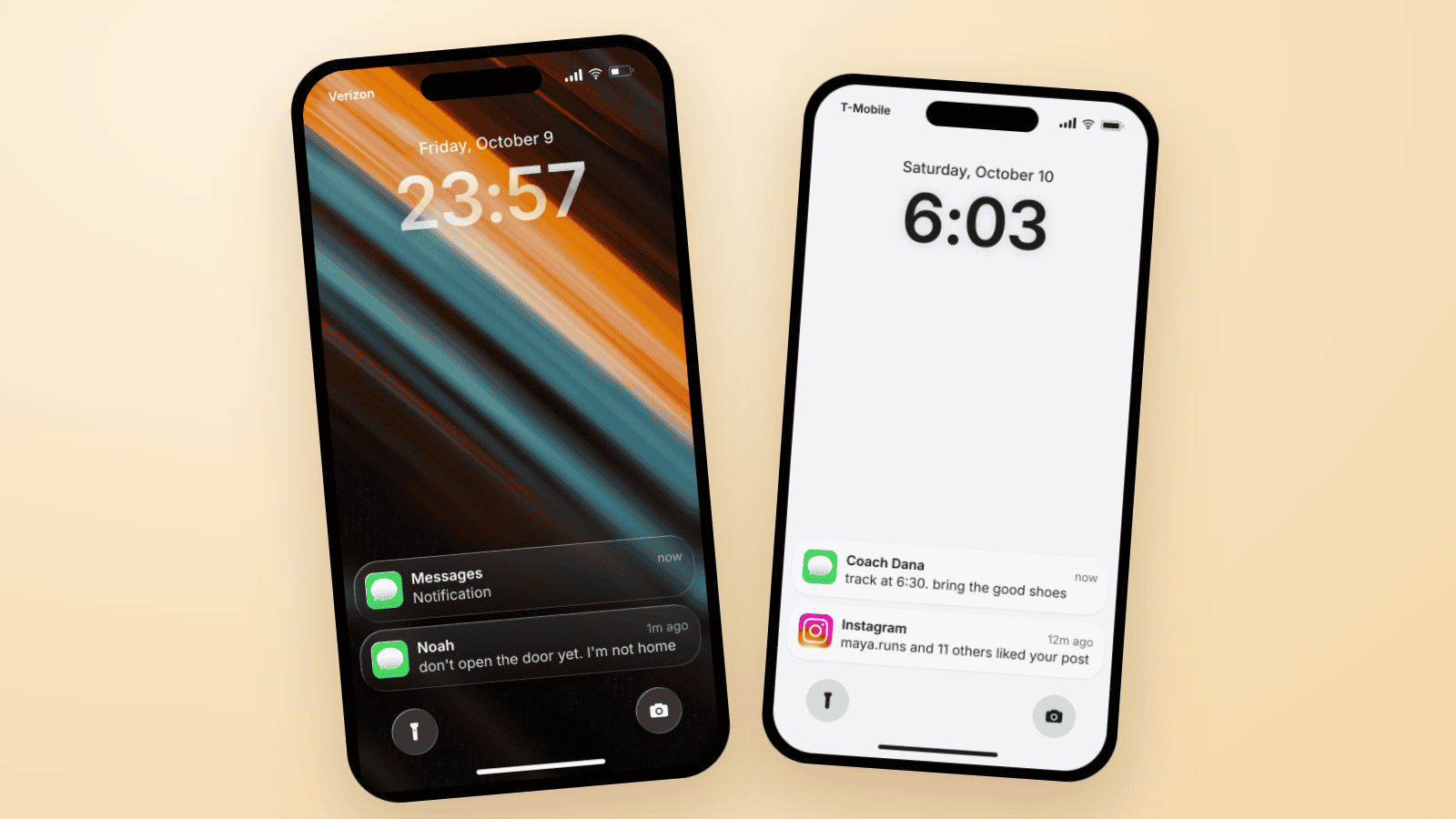
This is the slide the trend is built on. Close to midnight, a hidden notification on top, and one text underneath that makes everyone ask "who is Noah?"
How to build it:
- Open the iOS notification editor. It starts with three sample notifications.
- Click the bottom card and delete it with the trash icon. Two cards are enough for this slide.
- Click the top card to edit it. It already has the Messages logo, so just change the sender to "Noah", write the text, and set the time label to "1m ago".
- Click the second card, click its logo, and pick Messages. Picking a logo also fills the title with the app name, "Messages", which is exactly what you want here. Set the message to "Notification" and the time label to "now".
- Use the arrows in the card editor to move the mystery card to the top of the stack.
- Click the clock and set it to 23:57.
- Open the style settings, pick a dark wallpaper, and switch the notification style to Liquid Glass.
- Export.
Why "Notification"? When someone hides message previews on their iPhone, the lock screen shows the app name as the title and a plain "Notification" as the body. It is the real version of the "someone just sent you a message" card, which makes it the best mystery card you can use.
Example 2: The Glow-Up Slide 3
The before/after carousel needs a different mood. Slide 1 is the before, slide 2 is the process, and slide 3 is the lock screen of someone whose life is on track: up at 6:03, a coach texting about practice, a post doing well.
Pick a light wallpaper and watch the screen flip: the clock, date, and status bar turn dark, and the cards turn frosted white. Mockly does that automatically, the same way iOS does.
What sells it:
- A gap in the time labels. "now" on the text, "12m ago" on the Instagram card. The morning already has a timeline.
- A sender name instead of an app name. "Coach Dana" reads like a real person in your contacts. "Messages" would read like a template.
- The carrier text. Set it to a real carrier in the style settings. Leaving a placeholder in the corner is the fastest way to break the spell.
Example 3: The Prank Your Friend Is In On
Three texts from Mom, each one more worrying than the last. This version lives on the reveal, so it only works when your friend knows it is a mockup. Show it, let them panic for two seconds, then tell them. Nobody who is not in on the joke should get it.
Build it like Example 1, with three Messages cards titled "Mom". Pick the logo first and type the name after, because picking a logo resets the title to the app name. Write the escalation from the bottom up: "where are you" at 9m ago, "???" at 3m ago, and "I can see your location" on top at now. Need another card? Use "Add notification" in the toolbar's notification menu. New cards land on top of the stack, just like a real arrival.
The same three cards also make a video. Pick video export and each card drops in one by one with the iOS spring motion, so the escalation plays out in time. That is the Reels version of the trend. The chat video generator page shows what else video export can do.
Zoom In on the Details
People pause on carousel slides, zoom in, and stare. That is where the details matter.
The hidden-preview card has the app name as its title, "Notification" as the body, and "now" in the corner. The Messages icon is the real App Store artwork, and the Liquid Glass edge catches the light the way the real card does. This crop comes from a 4K export, which is why the text stays sharp at this zoom.
Exporting the Slide for TikTok
TikTok carousels are 9:16. When you hit export, the export dialog has a Canvas option: pick 9:16 and Mockly places the phone on a full-size slide, with a background color and padding you choose. Pick "Original" if you want just the phone and plan to lay out the slide in your editing app.
A few export notes:
- Image export is the carousel slide. Your first export is free, and a free account adds 3 more.
- HD and 4K are on Premium. Worth it if people will zoom in.
- The watermark sits on free exports. Premium removes it.
- Video export is on Premium too, for the Reels version from Example 3.
What This Is Not For
The lock screen trend is fiction, and the fun depends on everyone knowing that. Don't build a lock screen that puts words in a real person's mouth. Don't use one to "prove" that someone texted you, paid you, or threatened you. Don't send a mockup to someone who has no idea it is made up. If you are on the receiving end of a suspicious lock screen, the guide on how to spot a fake screenshot helps, and the complete guide to fake screenshots covers the ethics.
Frequently Asked Questions
Is the fake lock screen trend a video or a photo? A photo. The trend is a carousel, and the lock screen is one slide of it. The arrival video from Example 3 is the Reels variant.
Does the slide need the iOS 27 look? No. The big clock is still the iOS 27 default, so a standard lock screen looks current. Liquid Glass is optional, and the editor has both the Classic and Liquid Glass styles.
Can I use my own wallpaper? Yes. Upload any image in the style settings. Mockly checks if it is light or dark and adapts the clock, text, and cards to match.
Can I show a hidden message like "Someone just sent you a message"? Yes. Give a Messages card the title "Messages" and the body "Notification". That is the card iOS shows when message previews are hidden.
Is this allowed? Fiction, fanfic, skits, and pranks where everyone is in on it, yes. Impersonating a real person or faking proof of anything, no.
Related Guides
- How to Make Fake iPhone Notifications
- How to Make iMessage Mockups
- Best Fake Notification Generators in 2026
- Chat Video Generator for TikTok Storytelling
- How to Spot a Fake Screenshot
Ready to build one? The fake iPhone notification generator is free to try, no signup needed.
Try it yourself
Create your first mockup in under a minute
40+ apps. Free to try, no signup needed.
Start your mockupAbout the author
Elena Brooks
Content Editor
Elena writes step-by-step tutorials and practical guides for creating realistic chat and social mockups. She focuses on helping creators quickly turn ideas into polished visuals that look believable in demos, landing pages, and client work.
Tags
More from the blog
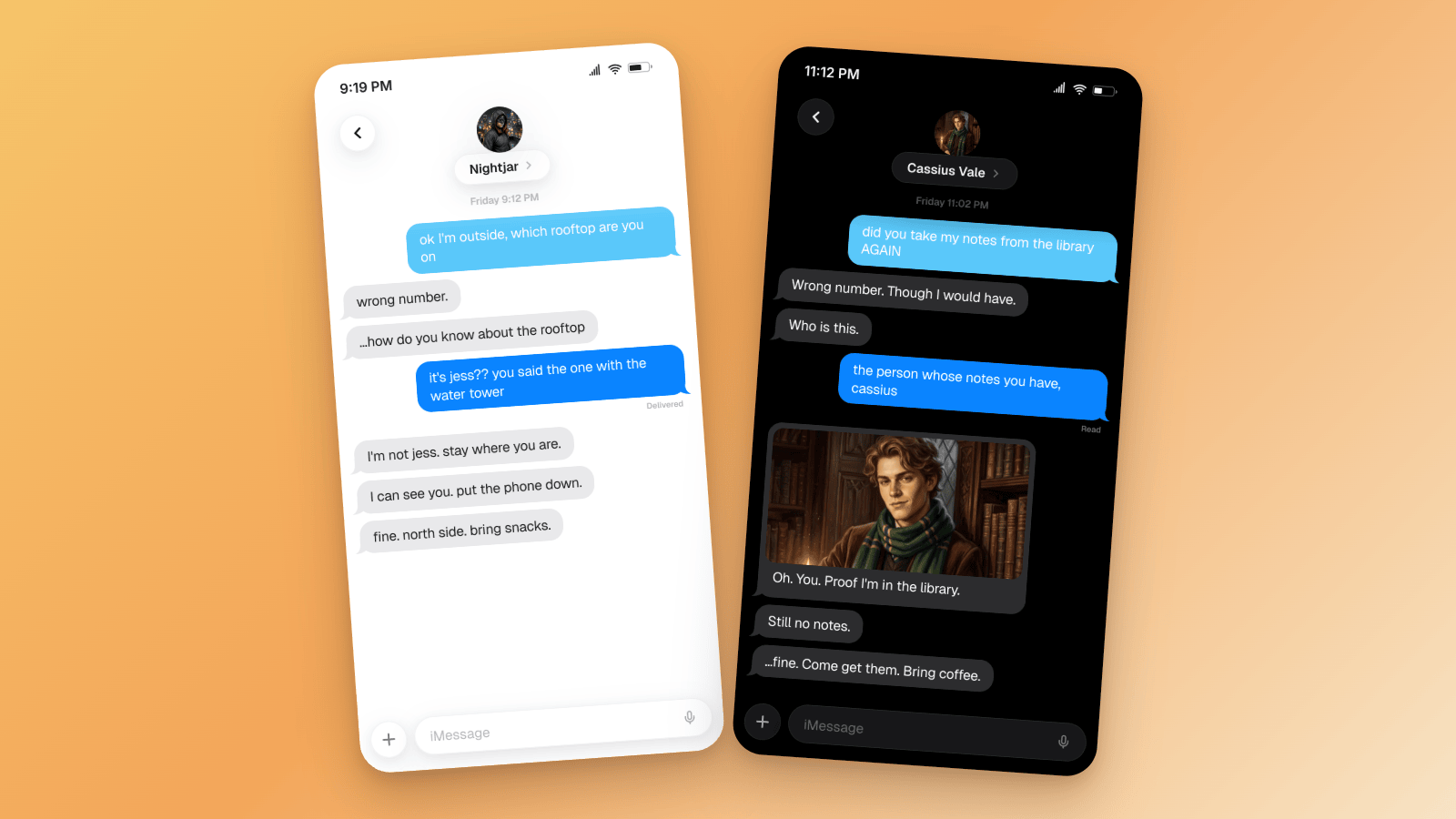
How to Do the Wrong Text Trend on TikTok (Step by Step)
The wrong text trend, explained: the format, the beats, and how to build your own fictional thread as an iMessage mockup. Slideshow or video. Free to try.
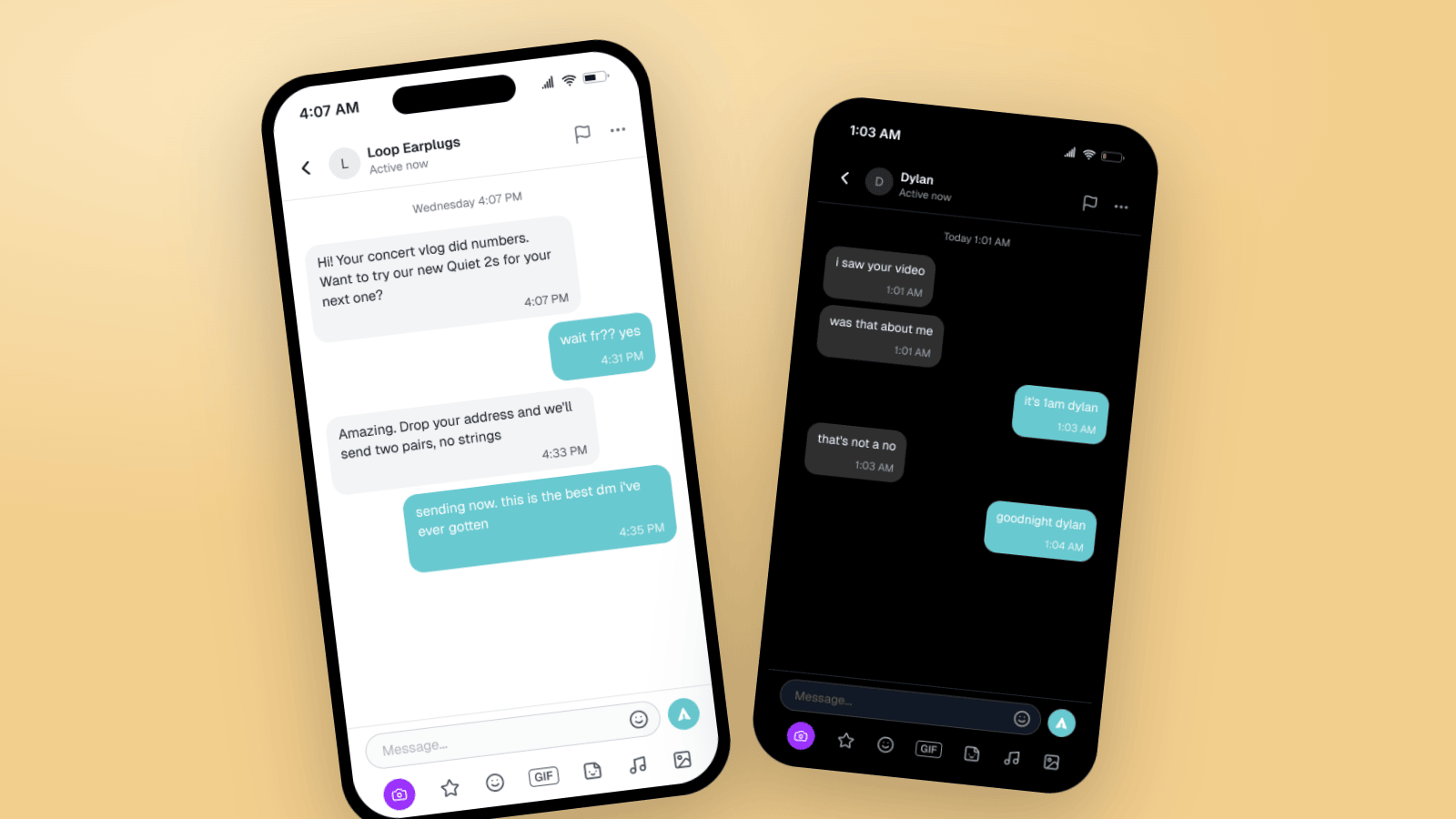
How to Make Fake TikTok DMs (Message Mockup Guide)
Make fake TikTok DMs that look real: the DM header, teal bubbles, dark mode, and the rich chat bar. Two worked examples, the details people check, and video export for storytime content.
How to Tell If a Screenshot Is AI Generated: 6 Checks
Screenshots can be AI generated now. Run these six checks: SynthID and OpenAI Verify, Content Credentials, reverse image search, and the UI tells per app.