
Why YouTube Comment Generators Are Everywhere Right Now
YouTube comment generators have exploded in popularity. Creators need comment section screenshots for thumbnails. Marketers need them for case studies. Designers need them for prototypes. And none of them want to screenshot real users without permission.
A YouTube comment generator lets you build a realistic comment section from scratch — pick the usernames, write the comments, set the engagement numbers, and export a clean, realistic screenshot. No real YouTube accounts involved, no privacy issues, no design skills required.
If you've landed here searching for a YouTube comment maker, here's everything you need to know — plus a walkthrough of the best free tool available.
What Can You Do with a YouTube Comment Generator?
More than you'd expect. Here's why people across different industries are generating YouTube comments:
Content Creators and YouTubers
- Create comment section screenshots for video thumbnails (the "look at these reactions" play)
- Mock up audience responses for sponsor pitches — show brands what engagement looks like on your channel
- Plan video concepts by visualizing potential audience reactions before filming
- Build "community post" content featuring curated comment compilations
Marketers and Agencies
- Include realistic YouTube comment mockups in client presentations and pitch decks
- Create social proof visuals for case studies and reports
- Demonstrate campaign performance with mockup screenshots instead of exposing real user data
- A/B test different messaging by mocking up how audiences might react
Film and Video Production
- Generate phone screen props showing YouTube activity for movie and TV scenes
- Create realistic app interfaces for production design without licensing issues
- Build background screen content for characters watching YouTube
Educators and Trainers
- Teach digital literacy with controlled, custom-made comment examples
- Create scenarios for online safety training without using real students
- Illustrate comment moderation strategies with purpose-built examples
- Show positive vs. negative engagement patterns in social media courses
Designers and Product Teams
- Build app prototypes that include realistic YouTube integrations
- Create design mockups and portfolio pieces with authentic-looking content
- Present UI concepts to clients with realistic embedded comment sections
Keep It Honest
YouTube comment generators are for mockups, prototypes, and creative work. Using generated comments to impersonate real users or deceive people isn't what these tools are built for.
How to Generate YouTube Comments with Mockly
Mockly's YouTube comment generator is the most complete free tool available. Here's a step-by-step walkthrough:
Step 1: Open the Editor
Head to Mockly's YouTube comment editor. Free to try, no download needed — works on any device.
Step 2: Add Commenters
Create profiles for each person in your comment section:
- Channel name: The display name shown next to comments
- Handle: The @username underneath
- Profile picture: Upload custom avatars or use generated ones
- Verified badge: The grey checkmark for official channels
- Creator badge: The highlighted indicator for the video uploader
Step 3: Write and Configure Comments
Build out your comment section:
- Comment text: Write whatever fits your scenario
- Like count: Set realistic numbers (vary them — not every comment gets the same engagement)
- Reply threads: Add nested replies under any comment with proper indentation
- Pinned comments: Pin one to the top, just like creators do on real YouTube
- Creator heart: Toggle the heart indicator on comments the creator "liked"
- Timestamps: Relative labels like "2 hours ago" or "3 months ago"
Step 4: Preview
The editor shows a live preview that updates as you make changes. Compare it against a real YouTube comment section to make sure the details are right.
Step 5: Export
Download as a high-resolution PNG or export as an animated video with scrolling effects. The free version includes a small watermark — Premium removes it and adds HD export.
Video Export = Content Gold
Mockly's video export feature creates scrolling comment sections perfect for TikTok, YouTube Shorts, and Instagram Reels. The "reading comments" format is one of the most engaging content types on short-form video right now.
What Makes a Good YouTube Comment Mockup?
The difference between a convincing mockup and an obvious fake comes down to details:
1. Realistic Engagement Distribution
Real YouTube comment sections follow a pattern: one or two top comments have thousands of likes, a handful have hundreds, and most have single digits or zero. If every comment in your mockup has exactly 100 likes, it looks artificial.
2. Varied Comment Lengths
A real comment section has everything from "lol" to multi-paragraph essays. Mix it up. Three-word reactions next to detailed feedback creates the natural variety people expect.
3. Authentic Usernames
Channel names like @gaming_mike or @sarah.creates.stuff feel real. @TestUser1 through @TestUser5 does not. Spend an extra minute making usernames believable.
4. Reply Threads
A comment section with zero replies looks empty. Even one or two reply threads add authenticity. Include some back-and-forth — that's how real conversations work on YouTube.
5. Strategic Pinning
If you're mocking up a creator's video, pin a comment that sounds like something a creator would actually pin: a correction, a link, or a highlighted fan comment. Don't pin a random short comment.
6. The Hidden Dislike Count
YouTube hides dislike counts on comments. This is a small detail that many generators get wrong. Mockly handles it automatically.
Mockly vs. Other YouTube Comment Generators
There are several ways to create YouTube comment screenshots. Here's an honest comparison:
DIY in Photoshop/Figma: Maximum control, but getting YouTube's exact fonts, spacing, and icon sizes right takes significant time. If YouTube updates their design, your template breaks.
Screenshot real comments + edit: Works in a pinch, but carries privacy risks. You might leave identifying information visible, and you're limited to comments that already exist.
Other online generators: Most are stuck on YouTube's old design. If the comment section layout is from 2020, your mockup immediately loses credibility with anyone who uses YouTube regularly.
Mockly: Built specifically for this. Matches YouTube's current comment design, supports every feature (verified badges, creator hearts, pinned comments, reply threads), and exports in one click. Plus, it's not just YouTube — Mockly supports 40+ apps across chats, AI chats, comments, posts, stories, and emails.
Advanced Tips for YouTube Comment Mockups
Building a Comment Section for a Thumbnail
YouTube thumbnails with comment screenshots perform well because they create curiosity. The trick is making the comments intriguing enough that viewers want to see the full context. Generate 2-3 comments that hint at something surprising or emotional, crop tight, and overlay on your thumbnail.
Creating Comment Compilation Videos
The "reading comments" format is huge on TikTok and YouTube Shorts. Use Mockly's video export to create scrolling comment section animations. Add your own commentary on top, and you've got a content format that consistently drives views.
Mock Up Different Scenarios
Need to show a brand what their YouTube presence could look like? Create multiple mockups — one showing organic engagement, another showing a viral response, another showing a Q&A thread. Multiple scenarios demonstrate strategic thinking and give the client a vision to get excited about.
Frequently Asked Questions
Is Mockly's YouTube comment generator really free?
Yes. Try Mockly's YouTube comment generator free. The free tier includes a small watermark. Mockly Premium removes the watermark and adds HD/4K exports plus video export.
Can I create YouTube reply threads?
Absolutely. Add nested reply chains under any comment with proper indentation, reply counts, and individual timestamps — just like real YouTube.
Does the generator support verified and creator badges?
Yes. Add verified checkmarks (grey) for official channels and the creator badge (highlighted) for the video uploader. Pin comments, add creator hearts, and configure every detail.
What export formats are available?
PNG for high-resolution screenshots and MP4 video with scrolling animation. Both are ready for social media, presentations, and design files.
How realistic are the mockups?
Very close. Mockly matches YouTube's current interface — fonts, spacing, colors, icons, and interaction elements — so the screenshots look like real YouTube comment sections.
Can I generate comments for other platforms too?
Yes. Mockly supports comment sections for Instagram, TikTok, X, Facebook, LinkedIn, Reddit, and Threads. Plus chat mockups for WhatsApp, iMessage, Discord, Messenger, and more. 40+ apps in total.
Is my data private?
The editor runs locally — your comments and usernames stay on your device while you build the mockup. Hitting export sends the payload to Mockly's render service to produce the image, but it isn't stored after.
Related Guides
Looking for more mockup tutorials? These might help:
- YouTube Comment Generator — Create Fake Comments Free
- Instagram Comment Generator — Free Screenshot Maker
- The Psychology of Social Proof: Why Comment Screenshots Convert
- Instagram Comment Generator Guide
- How to Create YouTube Comment Mockups (Step-by-Step)
- How Marketers Use Mockly
- Message Mockups for Marketing
- Complete Guide to Fake Screenshots
Ready to try it? Open Mockly's YouTube comment generator or go straight to the YouTube comment editor and build your first comment section mockup. Free to try, takes about two minutes.
Try it yourself
Create your first mockup in under a minute
40+ apps. Free to try, no signup needed.
Start your mockupAbout the author
Elena Brooks
Content Editor
Elena writes step-by-step tutorials and practical guides for creating realistic chat and social mockups. She focuses on helping creators quickly turn ideas into polished visuals that look believable in demos, landing pages, and client work.
Tags
More from the blog
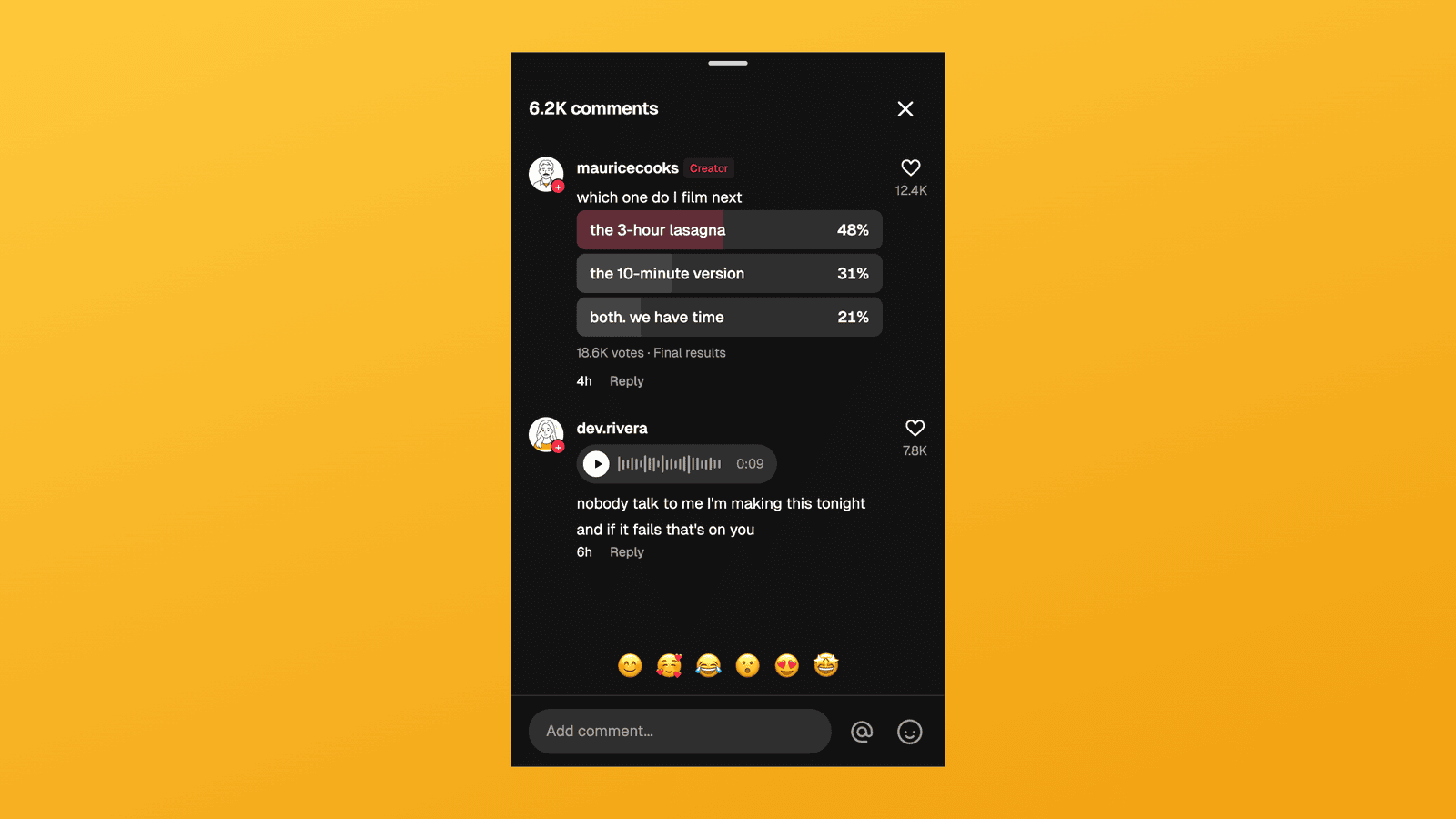
TikTok Comment Template: Voice Comments, Polls and Replies
Make TikTok comment mockups with voice comments and creator polls, plus the Creator badge, replies and heart counts. Free to try, no signup needed.
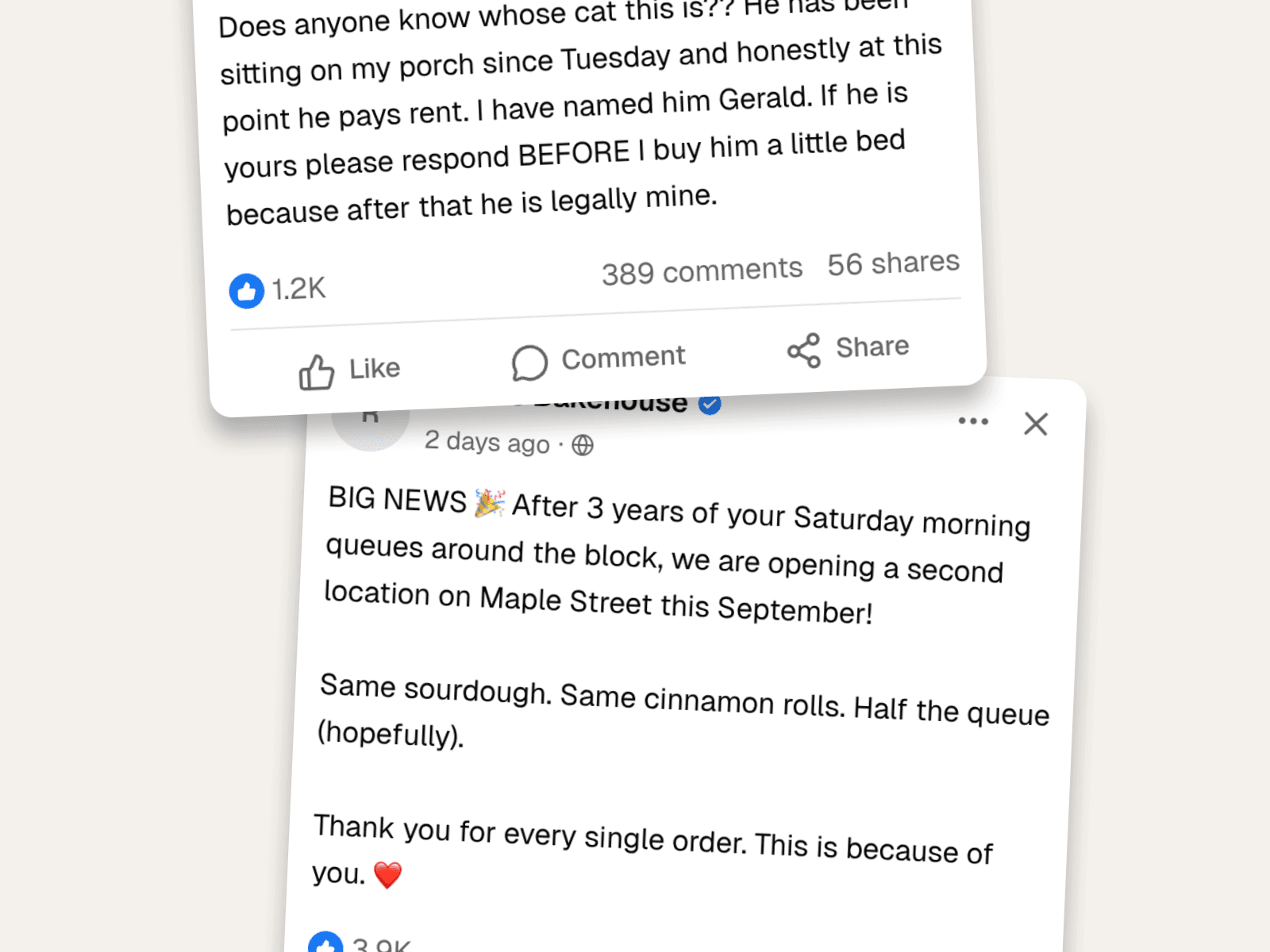
Fake Facebook Posts & Comments: The Complete Guide
Create fake Facebook posts and comment threads that look real, with reactions, shares, nested replies, and the exact layout. Worked examples for content and marketing.
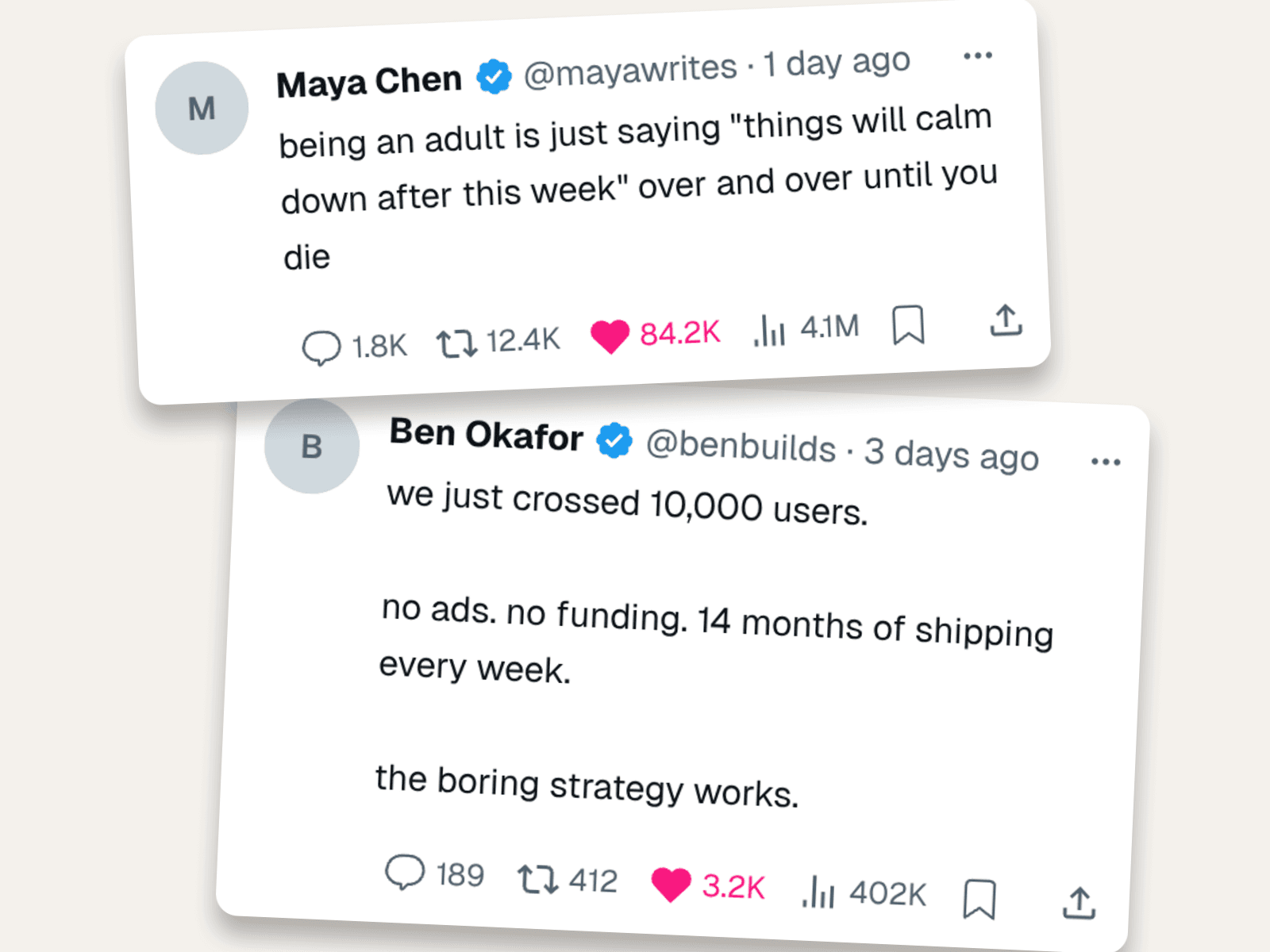
How to Make a Fake Tweet | X Post Generator Guide
Create fake tweets that look real, with verified badges, engagement numbers, timestamps, and 4K export. Three X post mockups you can copy, plus the details that sell them.